
Once the content has been created in the Content Bank, it can be added to your Moodle course using Add an Activity or Resource. This is the only way that H5P activities will sync to the Moodle Gradebook.
As an alternative, H5P activities can also be added directly into any Moodle text box, but this method will not sync to the Moodle Gradebook.
1. Click the Turn Editing On button. Locate the desired module in your Moodle course, and click Add an Activity or Resource to place the H5P content.
2. Find and select the H5P icon.
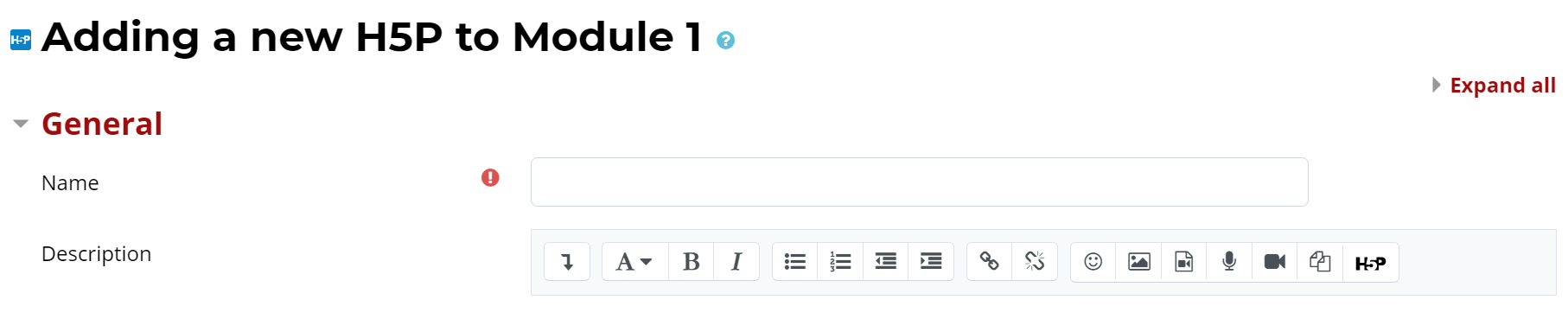
3. Name the activity and provide a Description (optional).
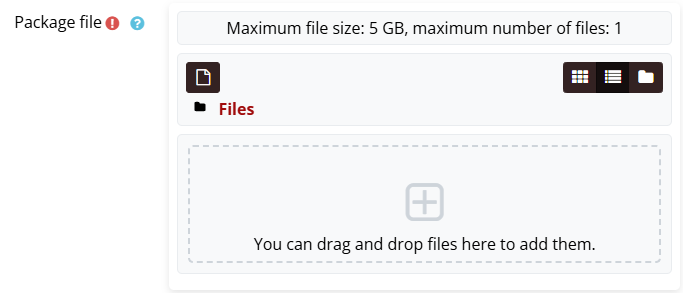
4. Locate the Package File field, and click the box titled "You can drag and drop..."
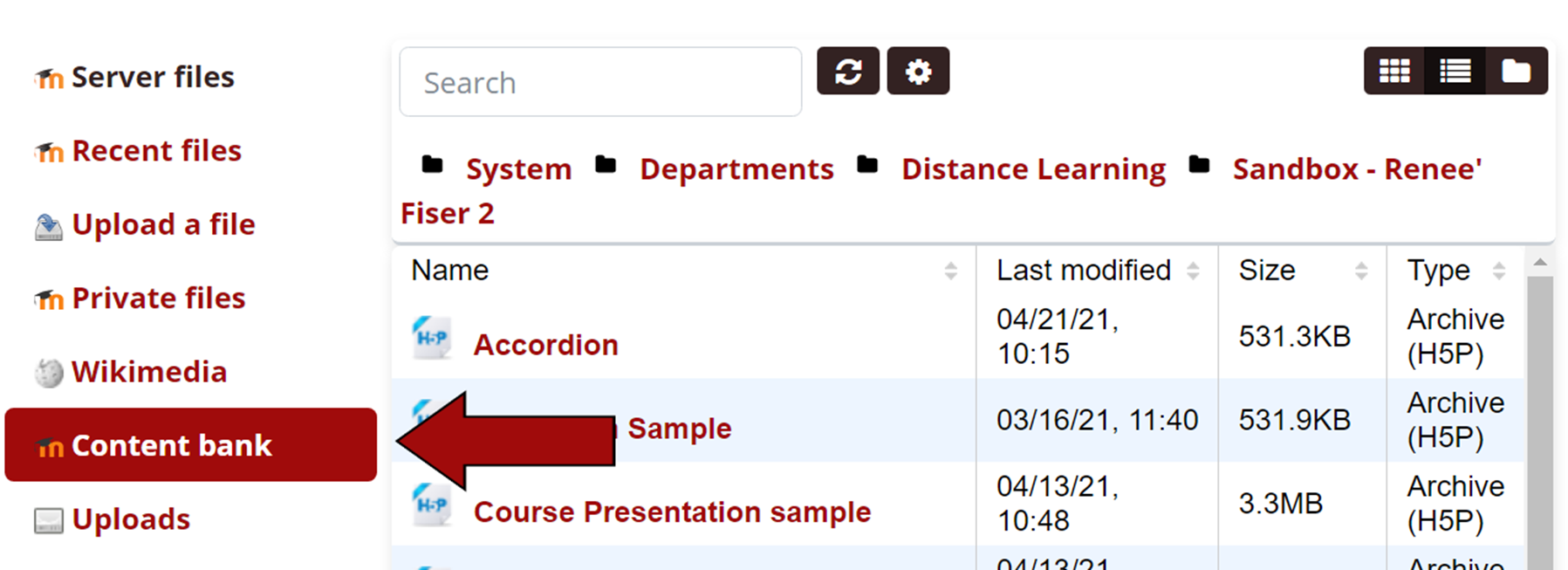
5. Select Content Bank from the left-hand tabs. Select the desired H5P content from the list.
6. Once the H5P content is selected, another dialog box will appear. You can edit the following fields, then click Select this file:
- H5P File Name (called Save As)
- Author Name
- License
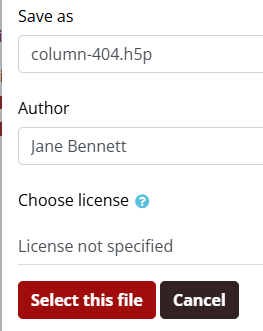
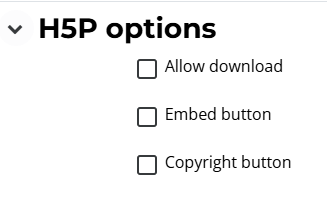
7. Under the H5P Options heading, adjust the following:
- Allow download - allows the H5P file to be downloaded.
- Embed button - allows the embed code for the H5P content to be copied/pasted.
- Copyright button - controls the visibility of the copyright and license information.
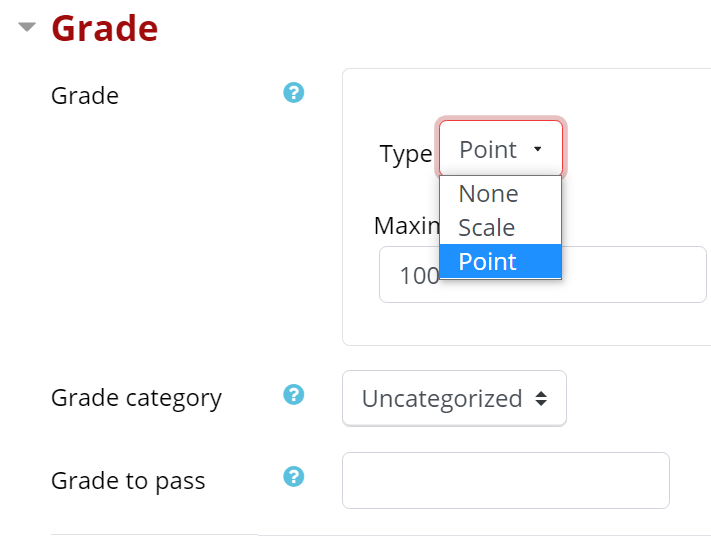
8. Under the Grade heading, choose the desired grading options, including Maximum Grade, Grade Category, and Grade to Pass. If the H5P content is not to be graded, select None in the Type drop-down menu.
9. Under the Attempt Options heading, select the desired tracking and grading options. See H5P Attempt options for more information.

10. Review all other headings to confirm the settings. Then click Save and Return to Course or Save and Display.

Return to H5P Resources - Main