
General Accessibility Guidelines
To make H5P Interactive Videos accessible:
- Set each interaction to pause the video
- Add instructions in the Description area of the activity
- Use good color contrast for all interactions
- Include a Summary Task
- Provide accurate closed captions
- Provide supplemental audio description (if needed)
More information about the accessibility of H5P Interactive Video is available.
For Videos From YouTube
Videos from YouTube do not display their closed captions in an H5P Interactive Video. For this reason, the best practice is to provide the link to the original video on YouTube as an accessible alternative format.
If the H5P Interactive Video is included as a Moodle Activity or Resource, paste the source link as hyperlinked text in the Description field.
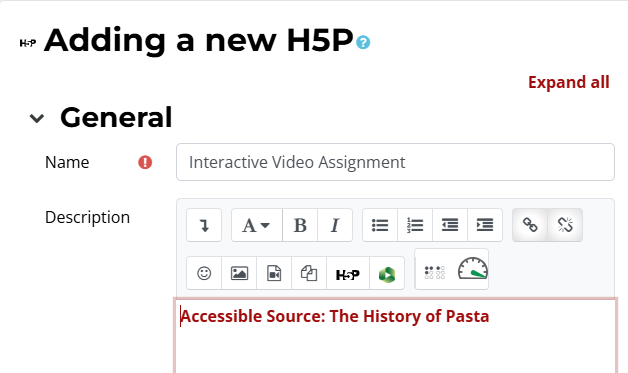
If the H5P Interactive Video is included in a Moodle text box, paste the source link as hyperlinked text directly above or below the interactive video content in the same text box.
For Videos from Panopto
Videos from Panopto do display their closed captions in an H5P Interactive Video, but the caption file (.VTT file) must be uploaded separately. The steps for adding the captions file are provided below:
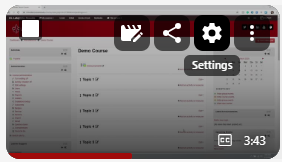
1. Inside Panopto, click the Settings button on the desired video (the Gear icon).
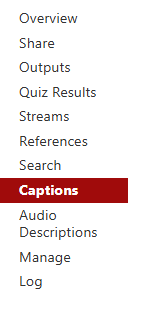
2. Select Captions in the left-hand menu.
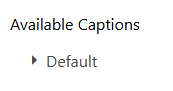
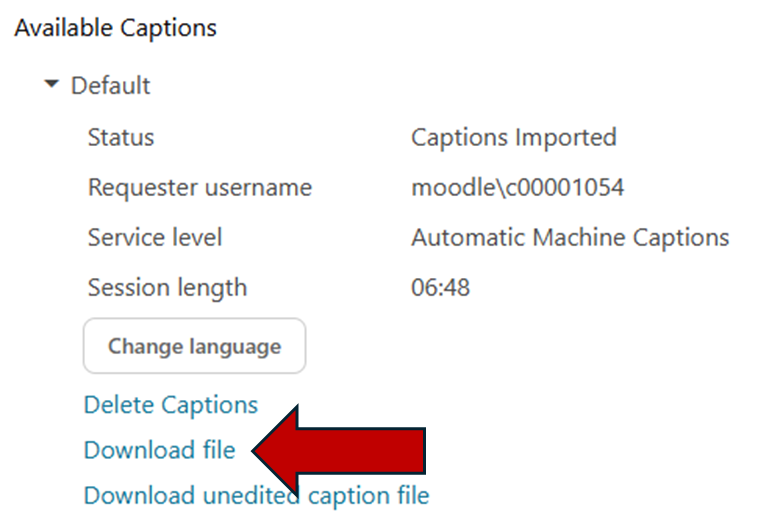
3. Under the Available Captions heading, click the word Default. This only works if the video already has captions. If it does not, add automatic captions first. This will cause more information to appear.
4. Click Download File to download a .TXT version of the captions with timestamps.
5. Next, you must convert the .TXT file into a .VTT file. This can be done using free file converters such as the free GoTranscript Subtitle Converter.
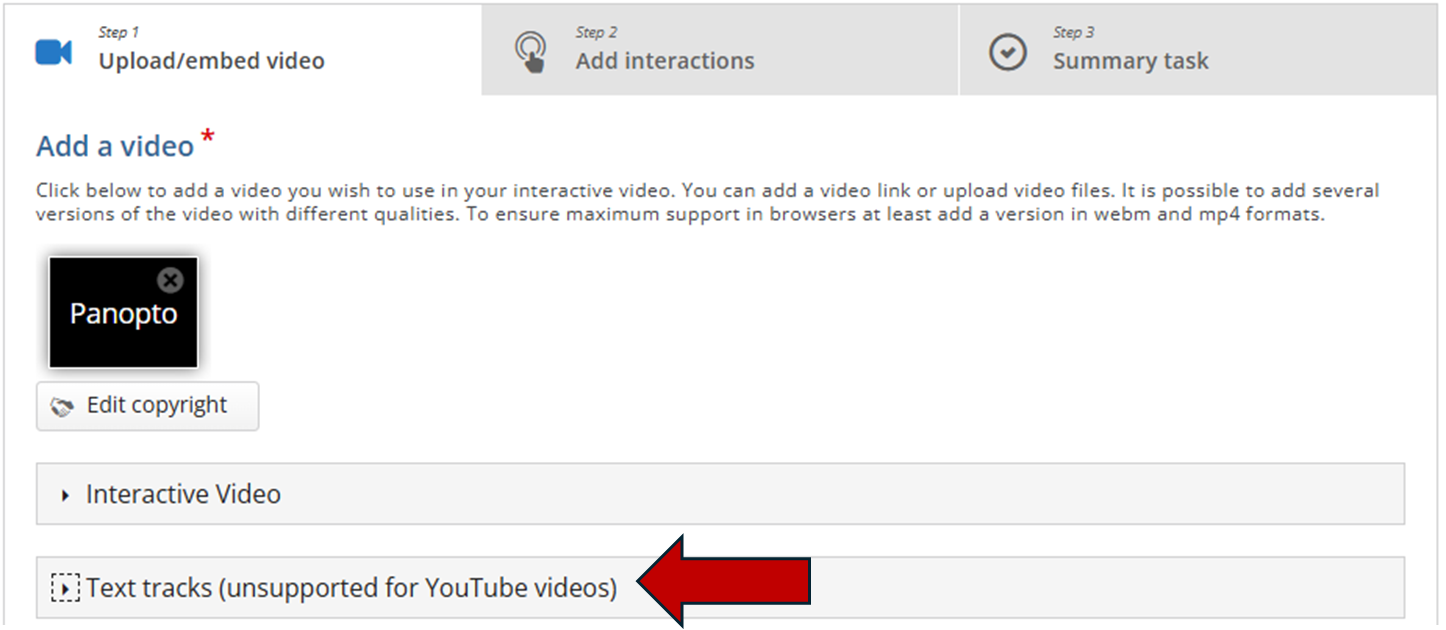
6. Return to Moodle. Go to the Edit screen for the H5P Interactive Video. In the Step 1: Upload/embed video area, click the Text Tracks (unsupported for YouTube videos) drop-down menu.
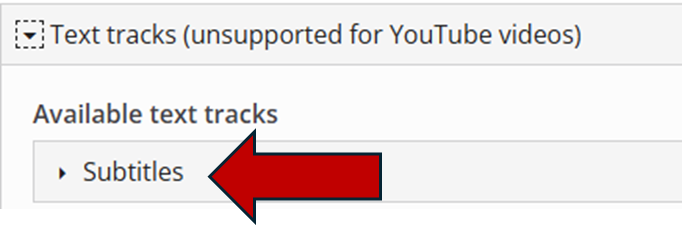
7. Within this drop-down area, click the Subtitles drop-down menu.
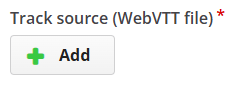
8. Scroll down to the bottom of this new drop-down area and click on the Track source (WebVTT file) + Add button. Then upload the .VTT file created in step 5 of these instructions.
9. Save the H5P Interactive Video. It will now display closed captions along with the interactions.