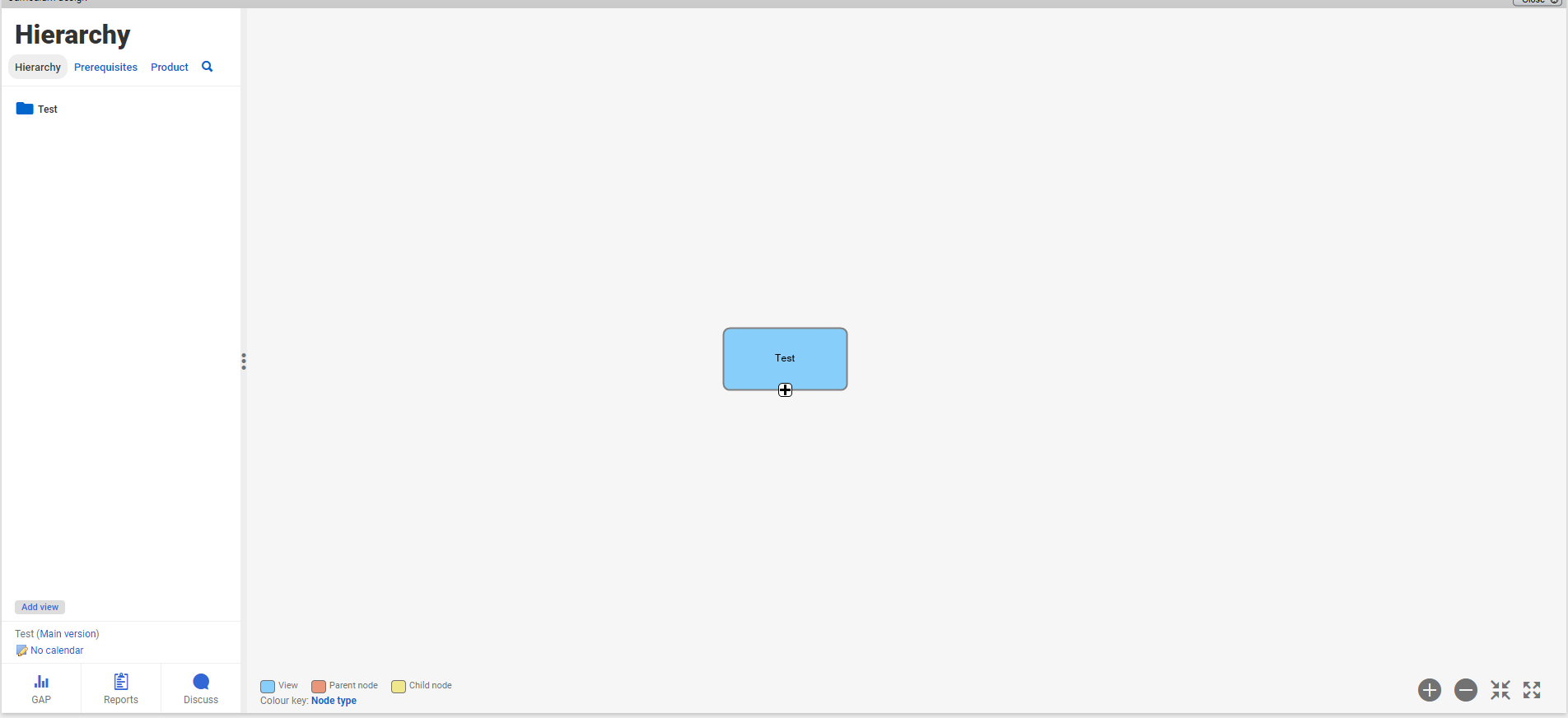
1. Log into your Moodle course, and click on any of the green puzzle piece links to Realizeit.
2. Click on the word Roles that appears in the upper, left hand corner of the Realizeit screen.

3. In the menu that will open, select Course Developer.
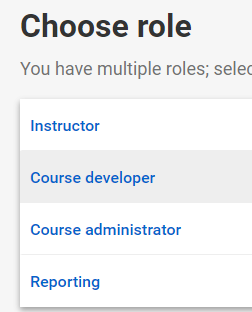
4. In the upper right-hand corner of the screen that opens, click on the Workflow Dashboard button. It looks like two diamonds with a dotted line between them:

5. This will open the Products page, click on the name of your course in the gray box:
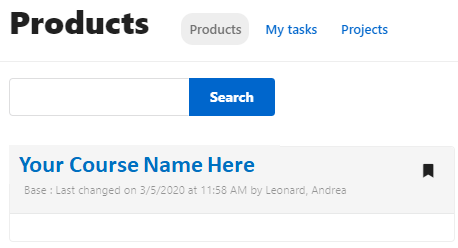
6. Congratulations, you are now in the developer screen.