Checklist block is a block that works with the Checklist module to display progress bars for a single checklist. It can be configured to show progress bars for all students or a group of students for a single checklist. The Checklist block does not work without the Checklist activity module.
Add a Checklist Block
1. On your course page, click the Turn editing on.
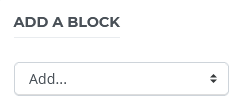
2. Scroll down to locate Add A BLOCK.
3. Select a Checklist block from the drop-down menu.
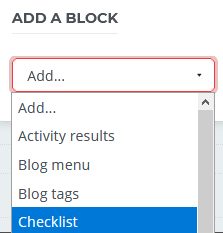
4. The page will re-load and the Checklist block will be added to the left-column.
Configure Checklist Block
1. Click gear icon in the Checklist block, and select Configure Checklist block.
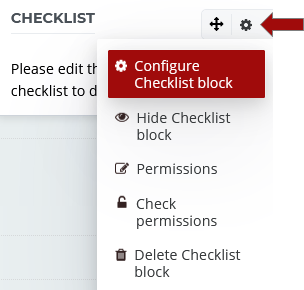
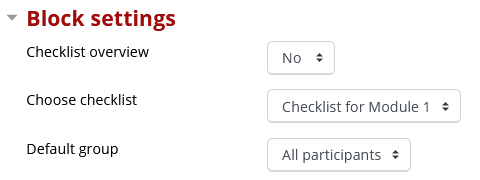
2. On the Configuring a Checklist block page,
- Determine if you want to show Checklist overview
- Choose Checklist that you want to show in the Checklist block
- Choose Default group displaying in the Checklist block
3. Click Save changes button.