
Below are the topics to discuss during the Zoom webinar Practice session.
- Scheduling (pdf)
- Host controls
- View settings
- Q&A
- Polling (if needed)
- Sharing Content
- Chat - between panelists
- Live transcription
- Background
- Audio/Video
- Securing the webinar
- Tech Support
1. Scheduling - Confirm that host has received [event name].pdf (sent in follow-up email) has been reviewed and no changes need to be made.
2. Host controls -
- Start Webinar, attendees join and recording begins. Cannot go back to Practice Mode.
- Make the Alternative host (co-host) the host to see all the settings available for hosts.
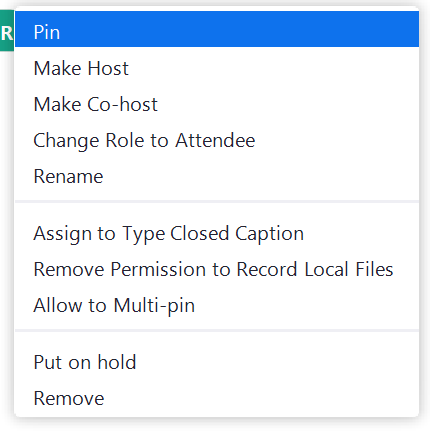
- Choose Participants from the bottom menu to view participants panel. Review the More settings. Click next to their name, Make Host. Review Panelists and Attendees tabs.
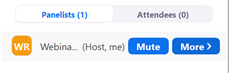
- More options (...).
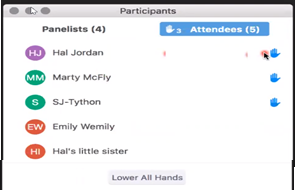
- Attendees list:
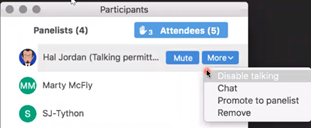
More options
At the bottom of Participants screen, review Invite, Mute All, choose ellipses.
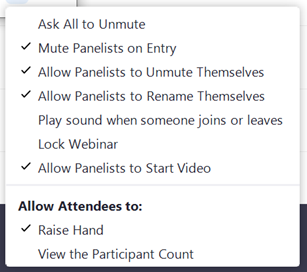
Go over options, explain the toggle.
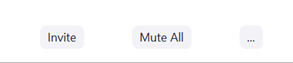
- Ellipses (...) - Review each setting in this panel.
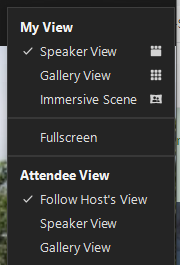
3. Review the View settings (top right corner)
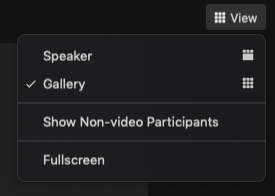
In Gallery View you have the option to show/hide non-video participants - only works when their video is off. Right-click on panelist with video off
- Recommend: Attendee View - Follow Host's View or Speaker View.
4. Q&A
Review bottom menu settings:
Q&A - Panelist View:
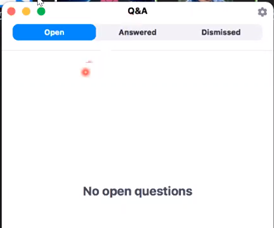
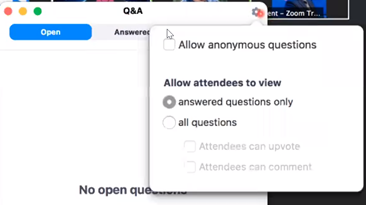
Q&A Settings:
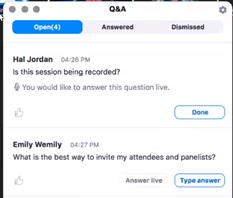
- When attendees ask questions. Options: Type answer, Answer Live, Dismiss, Send Privately, see ratings (thumbs up)
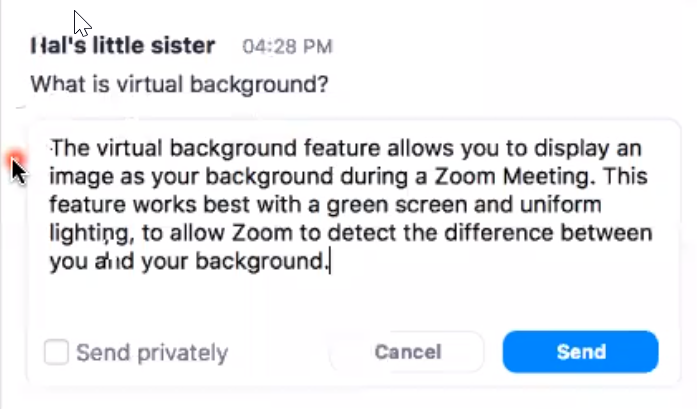
Typing an answer (can be done privately or to all webinar participants). If private, all panelists can still see the response.
If you have votes turned on
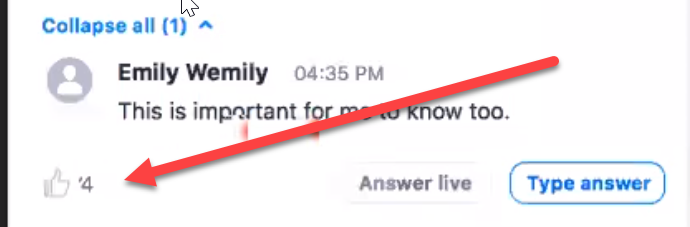
You might see the questions move a little bit because zoom will prioritize the most popular questions to the top of the list.
You also have dismissing options.
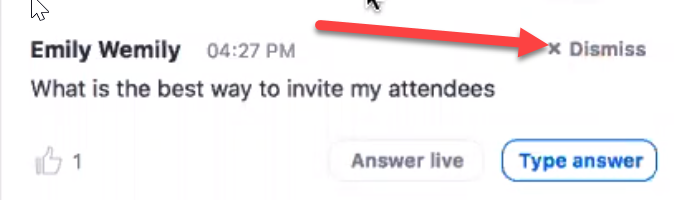
Answered and Dismissed tabs. Dismissed questions can be reopened. Attendees are not notified when the question was dismissed.
5. Polling - Alternative hosts can add polls(10 questions per poll, 25 total polls).
6. Sharing Content - same as Zoom meetings. See Screen Sharing.
7. Live Transcription option on the bottom menu.
8. Background options - Up arrow next to Video button, Background.
9. Audio/Video -
- Mute - discuss panelists utilizing Mute when not speaking, check background noise.
- Video - Discuss Video on/off, backgrounds, etc.
11. Tech Support - Office of Distance Learning 482-1246 or Zoom info after 5 pm.