
Text and Media Area has replaced Label. Text and media area serves as a spacer on a Moodle course page. It can be used to add text, images, multimedia or code in between other resources in the different sections.
1. On your Moodle course, click Turn editing on.

2. Click +Add an activity or resource in the section where you want to add a label.
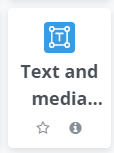
3. In the Add an activity or resource window, select Text and media area. The Adding a new Text and media area page will open.
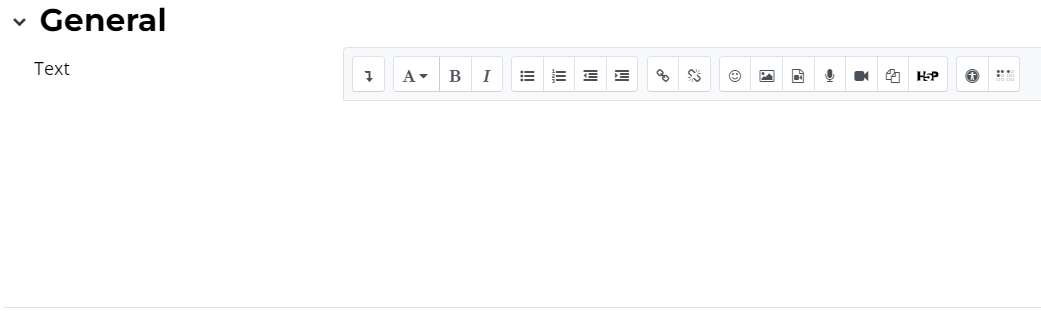
5. On the setting page, enter and format your text in the Text box.
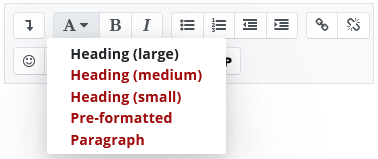
Note: To accommodate accessibility for all students, use Paragraph styles to format subheadings rather than choosing bold and larger text.
6. Scroll your mouse over the menu (and secondary menu) items to determine the type of text or media available.

7. Click Save and return to course. The label will appear in the section to which it was added.
