
Using Activity Completion settings, an instructor can decide what (if any) criteria must be met for a Forum to be marked complete.
1. Go to the Settings menu for the Forum.

2. Locate and click on the Completion conditions heading.

3. In the Completion Tracking dropdown, select one of three options:
- Do not indicate activity completion: no indication will be provided
- Students can manually mark the activity as done: When clicked, the box will changed from Mark as done to a green Done box.

- Show activity as complete when conditions are met: indicated with the criteria listed. The criteria will change based on how the instructor set up activity completion and student activity within the Forum. When all criteria is complete, a green Done box will appear.
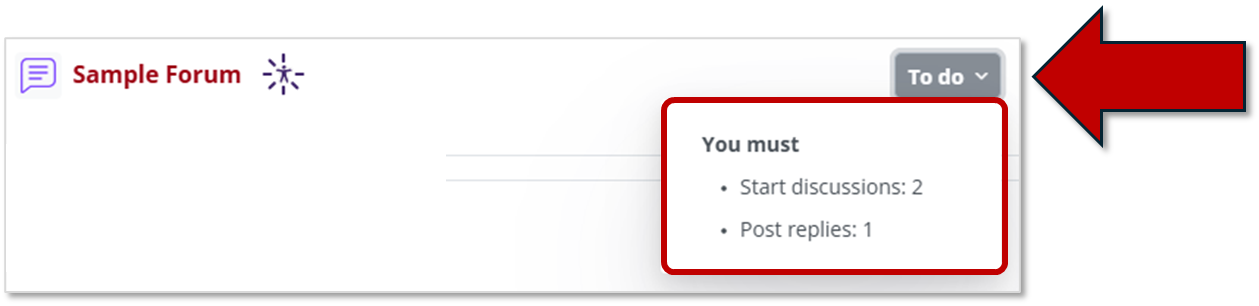
4. If Show activity as complete when conditions are met is selected, a series of options will appear.
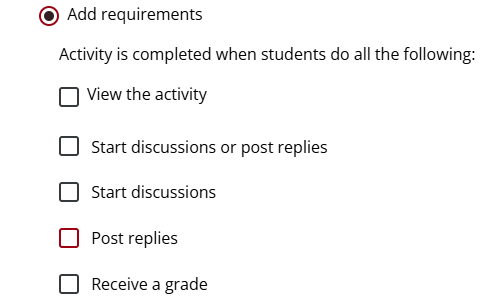
5. Click the checkbox beside any conditions students should meet. Students will be required to meet ALL selected conditions for the activity to be marked complete.
- Require View: the student must simply click on the Forum.
- Require Grade: either a Rating or Whole Forum Grade is required (see Grade a Forum).
- Require Posts: sets the number of times students must either add a new topic or reply to others' posts.
- Require Discussions: sets the number of times a student must add a new topic.
- Require Replies: sets the number of times a student must make a reply post.
- Expect completed on: The date and time the activity should be completed. The activity will appear in the Timeline block when the date is upcoming.
6. When done, click the red Save and Return to Course or Save and Display button.

Return to the Forum main resource page for more information on other topics.