
Activity Completion allows you to set completion criteria in a specific content's settings. A check mark appears against the resource when the students view the activity.
To enable Activity completion
1. On your Moodle course, click Turn editing on.

2. Click Edit and Edit settings of the resource for which you want to enable Activity Completion. Note: three dots at the end of the row.
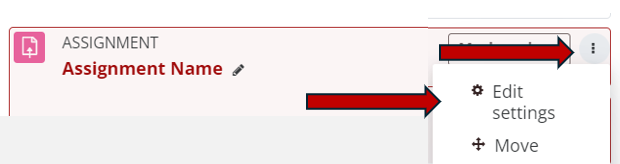
3. Locate and click on the Completion Conditions.
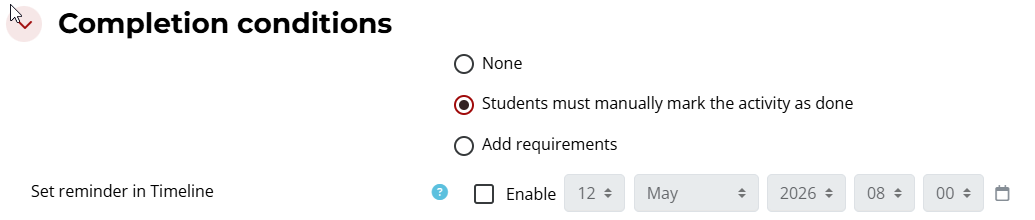
4. Select one of three options:
- None: no indication will be provided
- Students must manually mark the activity as done: indicated with green checked done box next to the activity

- Add requirements: Will vary on the conditions selected.

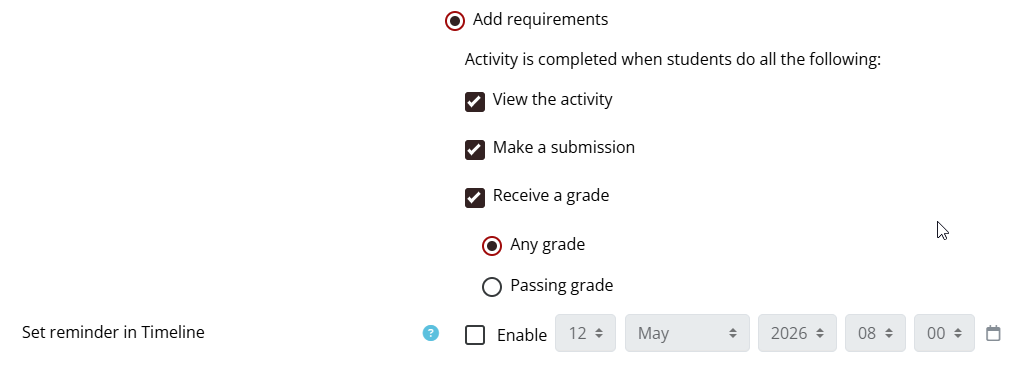
5. If Add requirements is selected, a series of options will appear.
6. Click the checkbox beside any conditions students should meet. Students will be required to meet ALL selected conditions for the activity to be marked complete.
- View the activity: the student must simply click on the Assignment.
- Make a submission: the student must submit to the Assignment
- Receive Grade: If checked, the activity is complete when a student receives a grade. If a pass grade is set, then pass/fail icons are displayed in the activity completion report.
- Any Grade: Activity is marked complete once a student receives any grade.
- Passing Grade: Activity is marked complete once a student receives the required passing grade.
- Set reminder in Timeline: If checked, when the date is upcoming the activity will be listed in the timeline block of the Dashboard.
7. When done, click the red Save and Return to Course or Save and Display button.
