
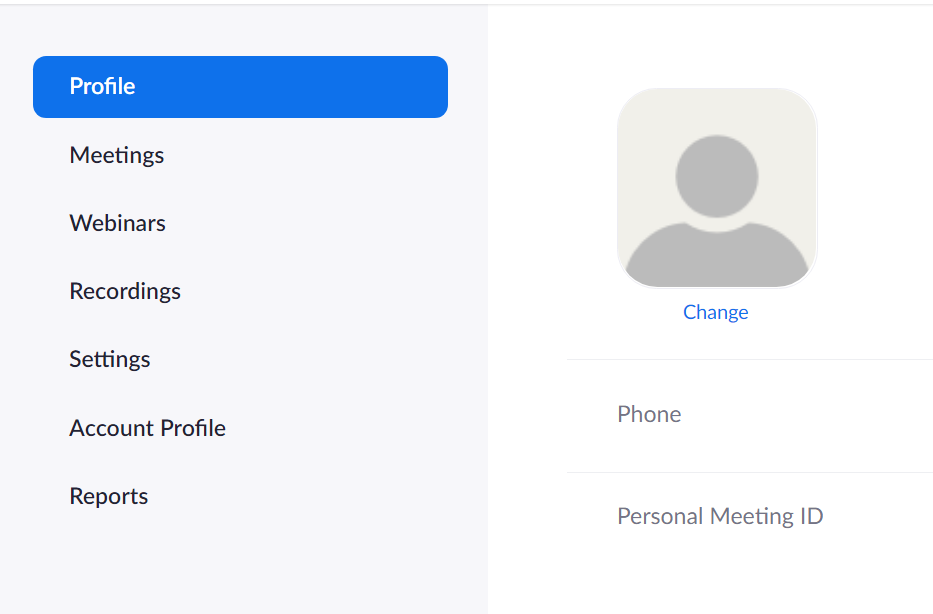
1. Log into your Zoom Dashboard.
2. Click on Reports, then select Usage.
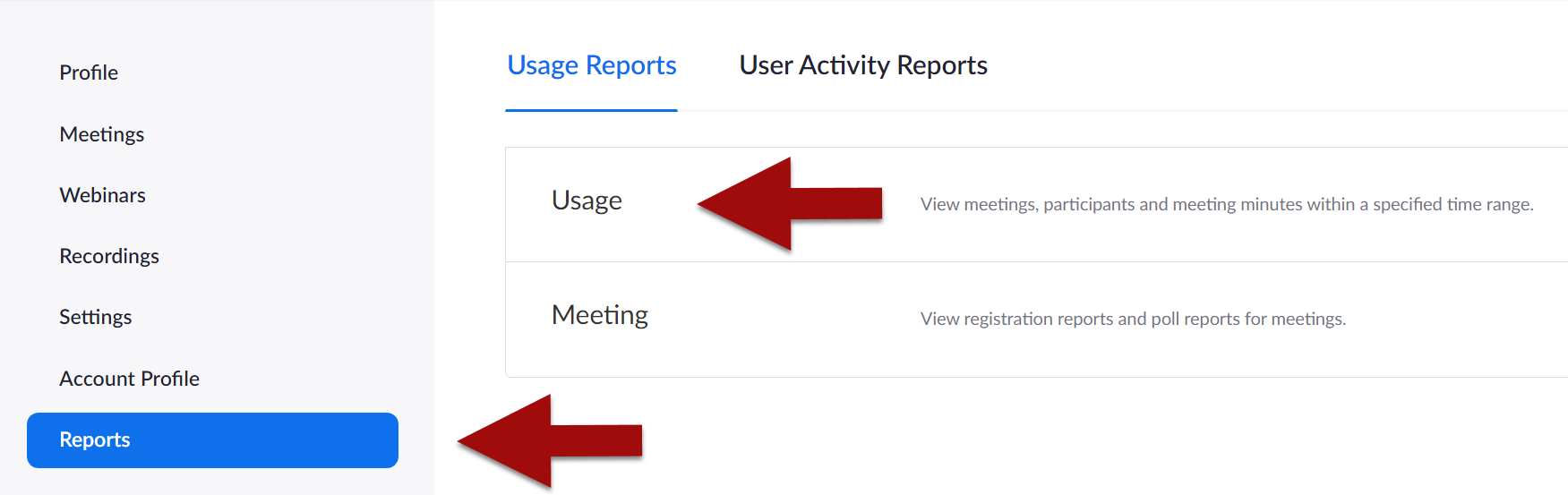
3. Check that the date range at the top includes the session for which you want to take attendance. Then click on the Participants link for the session.

4. Review the Report. Select Show Unique Users. Click the Export button (if needed).
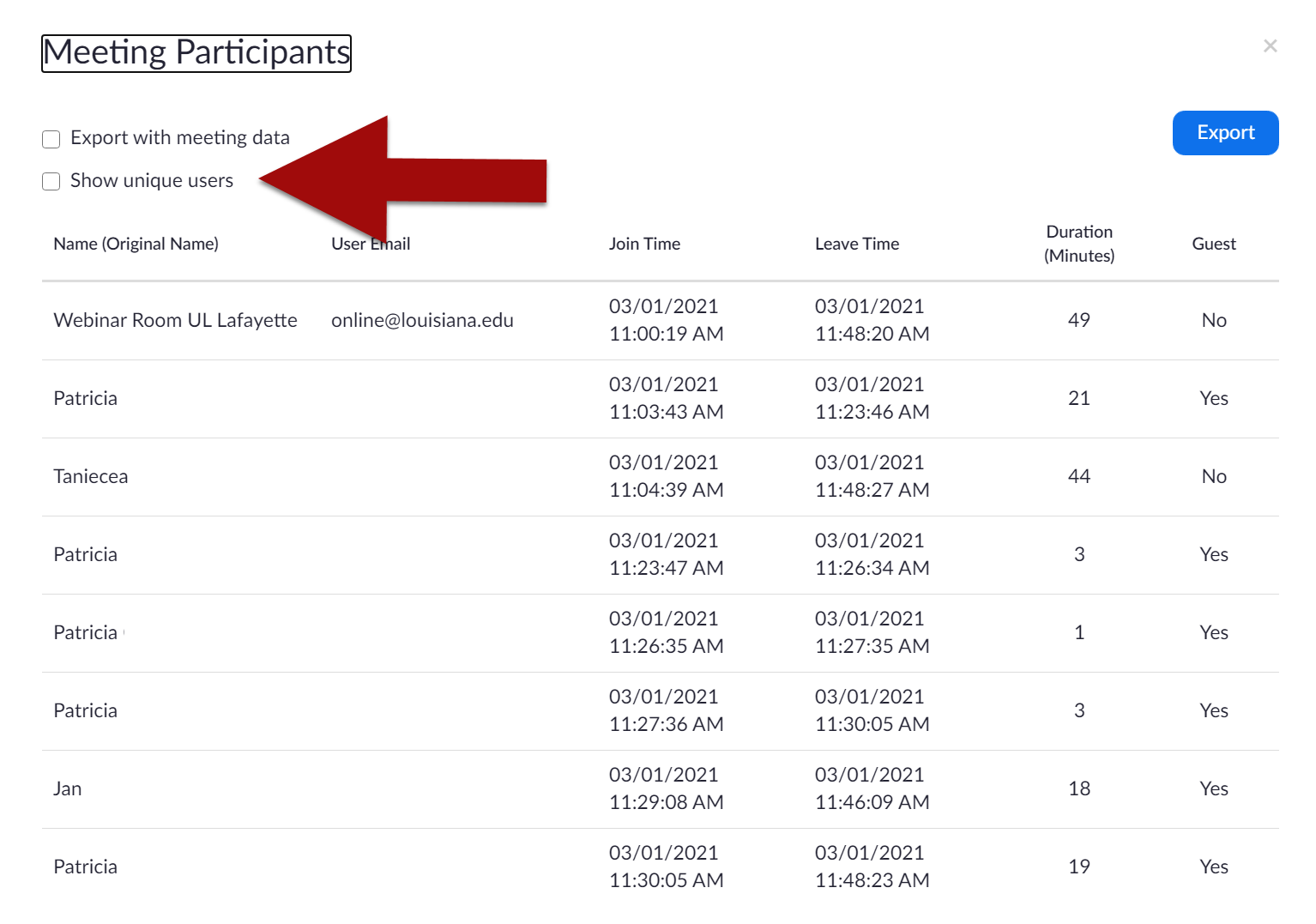
5. A CSV file will be download to your computer.
Return to Faculty Zoom Resources