
1. Go to UL Lafayette Zoom login portal and select Sign-In. Use your ULID credentials to get to the Zoom Dashboard.

2. Click on the Schedule New Meeting button.

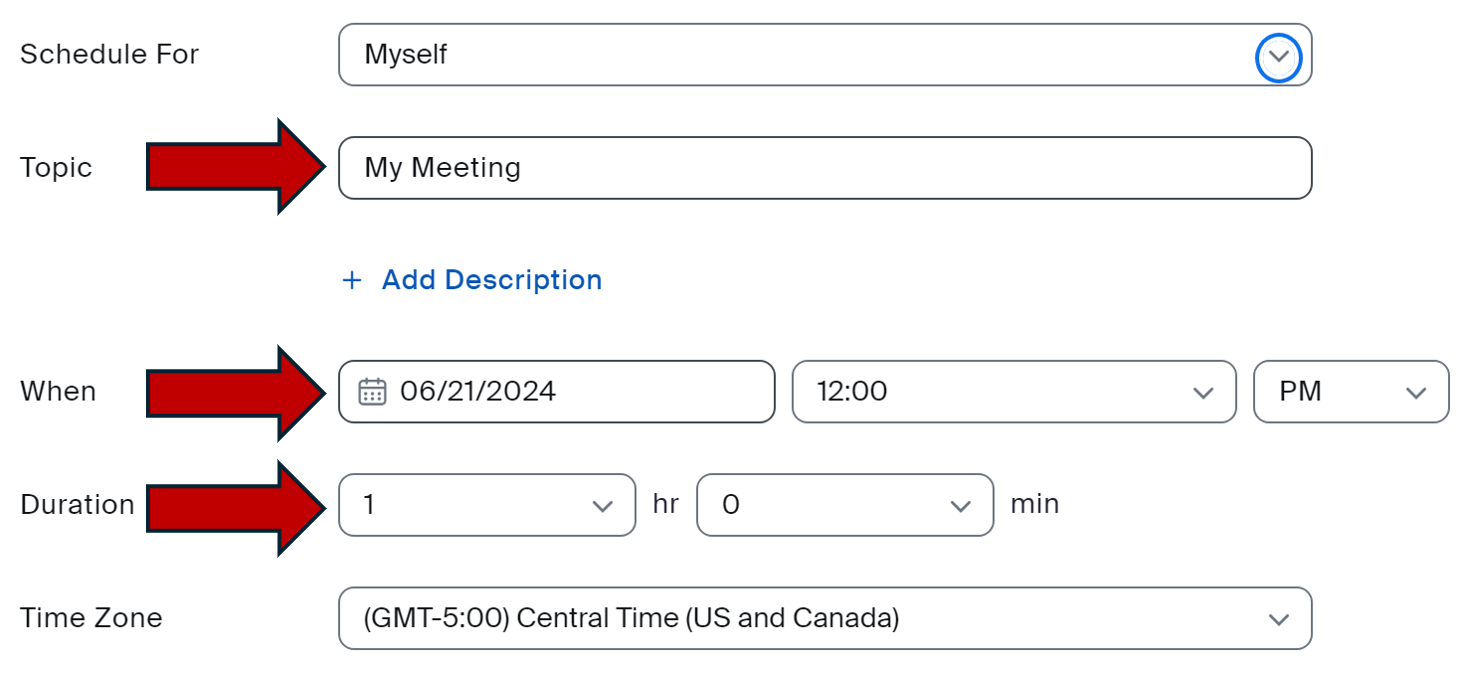
3. Complete the Topic, Description (optional), When, and Duration.
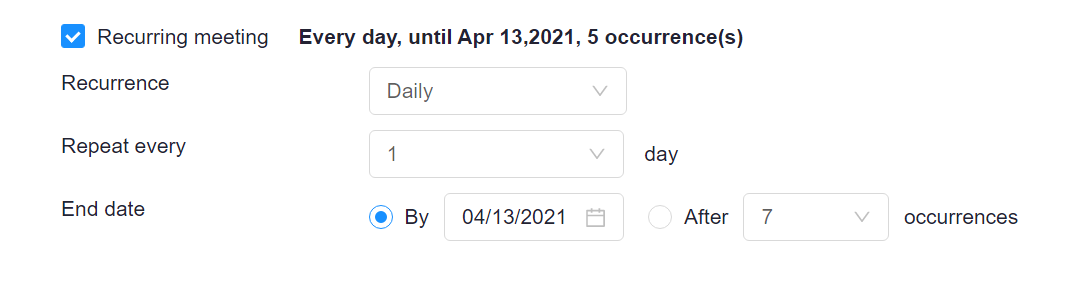
4. If the meeting is recurring, select the Checkbox and complete the recurrence options.
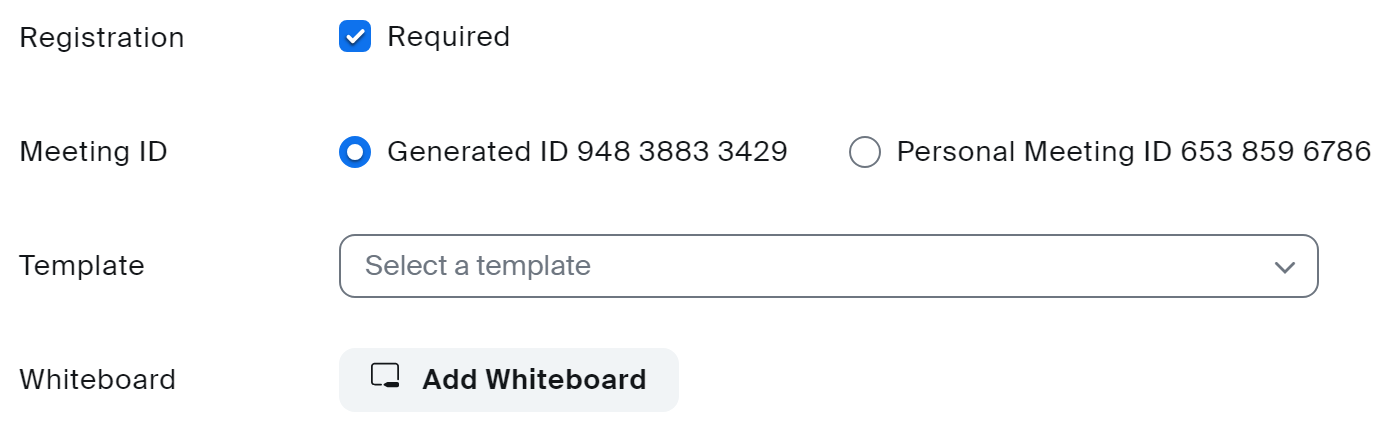
5. Enable Registration (optional), add a Template or Whiteboard.
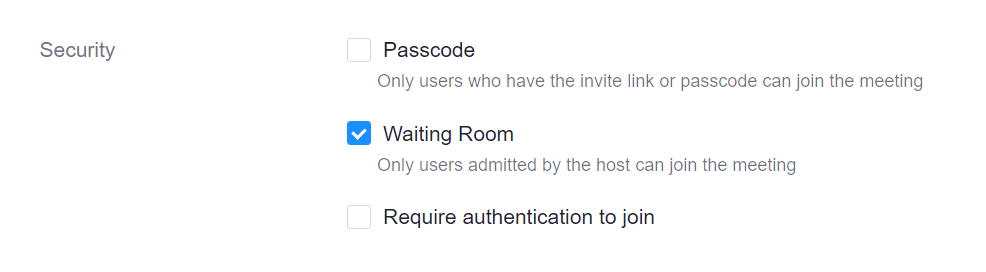
6. Security options. By default, Waiting Room is enabled.
7. Recommend Audio/Video selections remain as shown.

8. To view the Options, click the Show link and select all that apply.
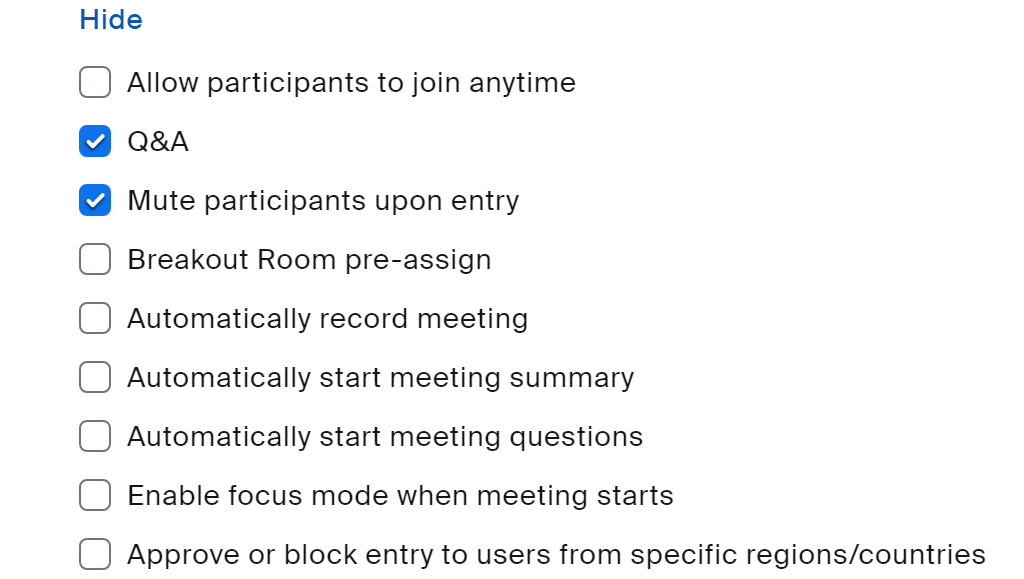
8. Alternative Host (optional). Note: Alternative Hosts must have a Zoom Pro Account with a ULID. Students cannot be an alternative host.

9. Save the meeting.

10. Click on the Meetings option in the side menu. Click on the meeting link to Start, Edit or Delete.
Return to Faculty Zoom Resources