
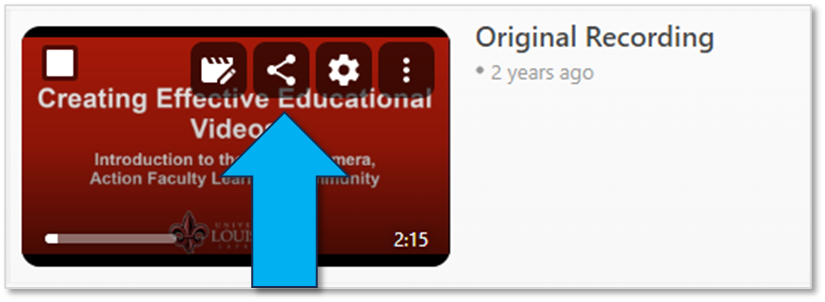
1. Locate the video and mouse over it. Click the Share button that will appear.
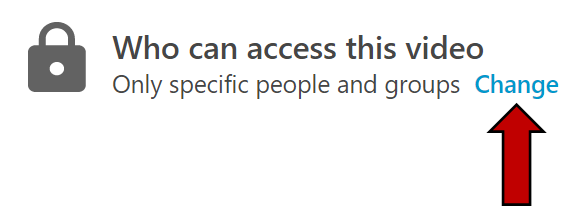
2. A settings page will open. Under the heading Who Has Access, click on the word Change to see all options.
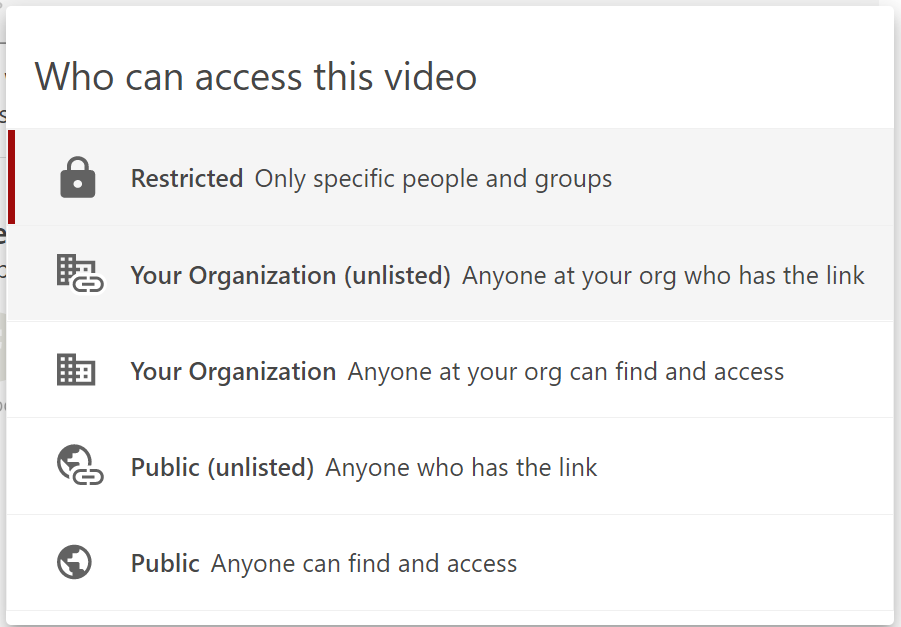
3. Select either of the two recommended options:
- Your Organization (unlisted) for sharing within a Moodle course.
- Public (unlisted) for sharing with an external audience outside Moodle.
4. Next, click the Link circle button.

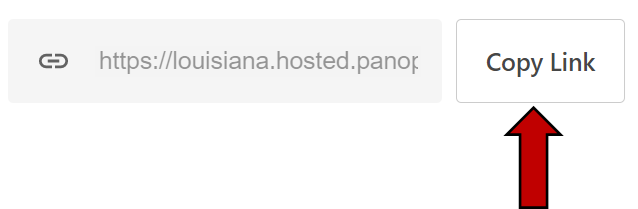
5. Click on the Copy Link button below and to the right of the Link circle button.
6. Send the link to this video to your intended recipients by email, etc.
You can also share the video with your Moodle class by creating a URL Resource.
Return to the Faculty Panopto Resources page for more information.