
1. Log into any Moodle course where you added a Panopto block.
2. Scroll down to the Panopto block.
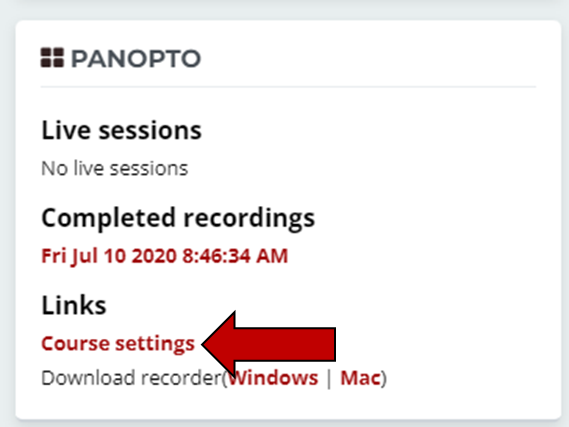
3. Under Links, Click on Course Settings.
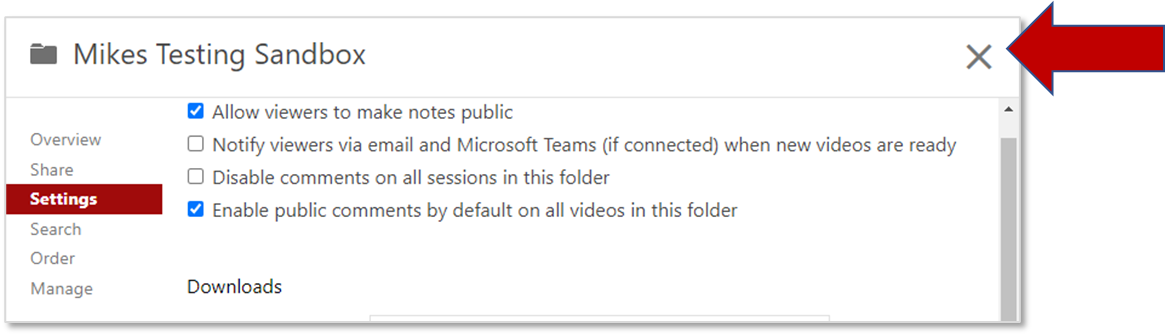
4. The first page is always the Settings page. Click the X in the upper right corner to close this page. Closing the window will show the Moodle Course Folder.
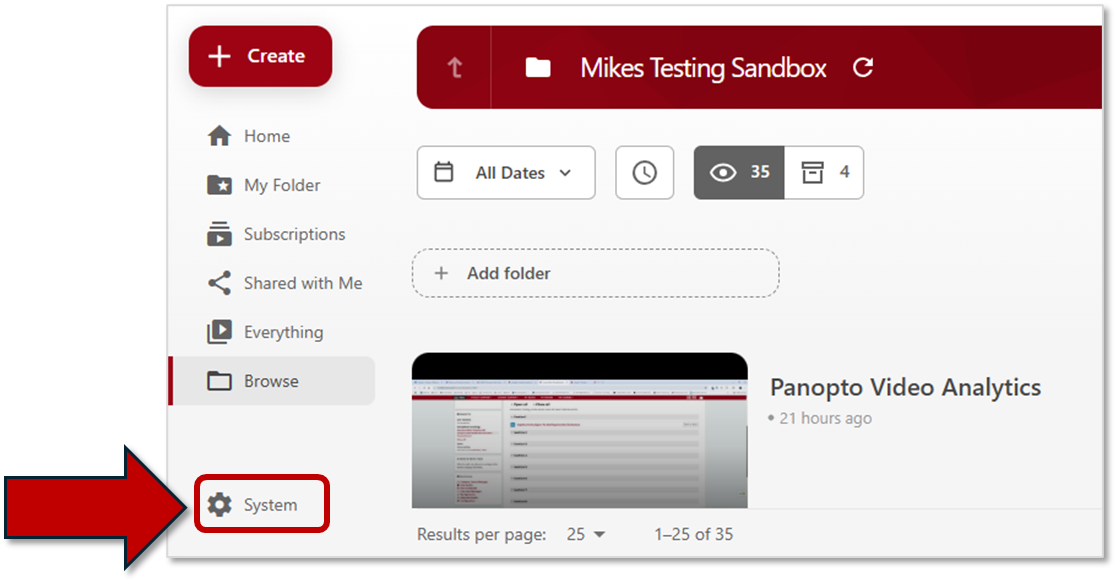
5. Click the System button at the bottom of the left menu.
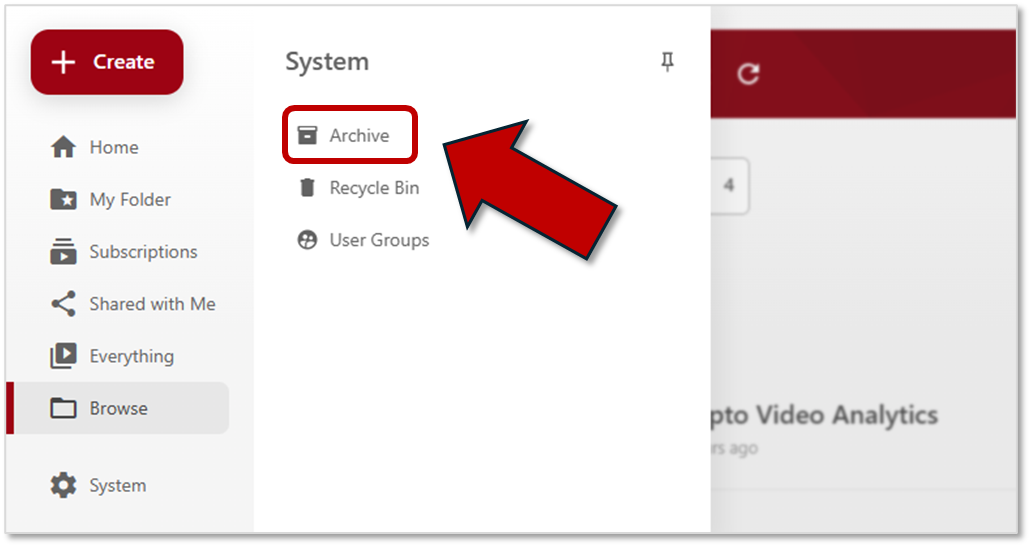
6. Click the Archive button.
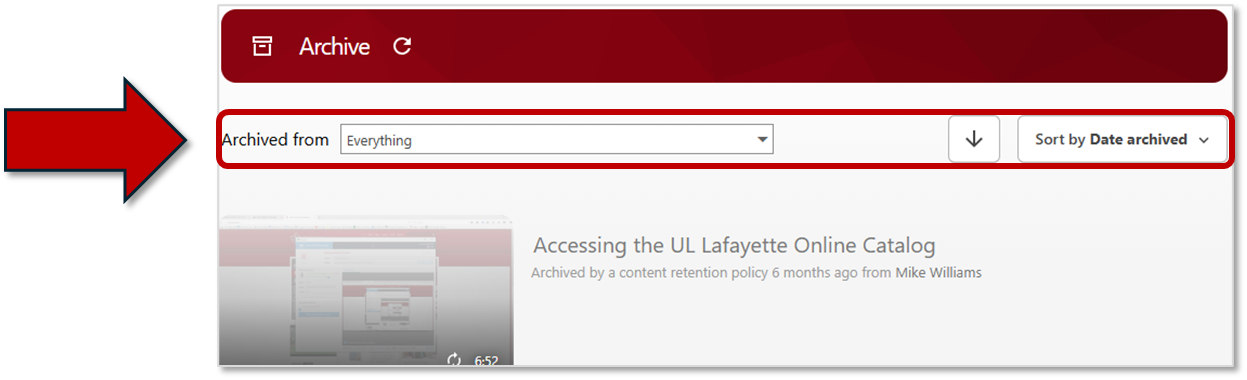
7. Sort the Archived Video List by folder, ascending/descending order, name, creation date, or date archived.
8. Hover over any video that you would like to restore from archive, and click the Restore from Archive button .
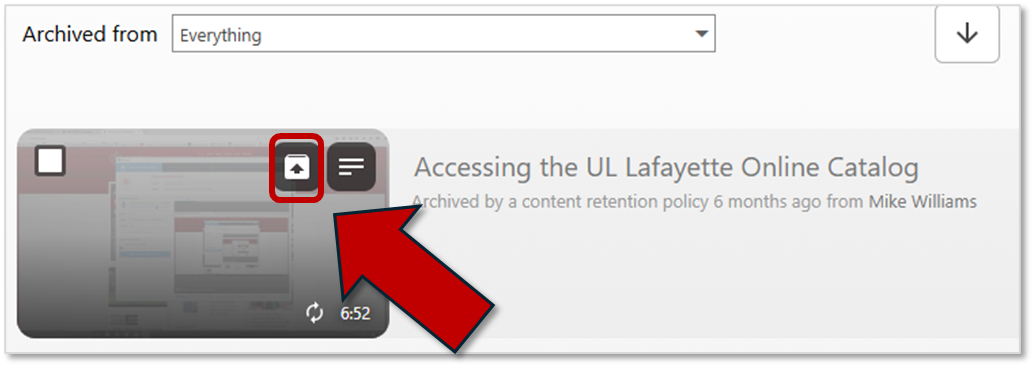
9. Make note of the folder from which the video was archived. This is where restored videos will be located.

Note: Restoration may take 24 to 48 hours before the video is available for viewing.