
Hyperlinks are basic elements of content design that should be carefully implemented to create a more usable and accessible experience for your students. Users with no sight difficulties as well as students requiring a screen reader need to be able to easily scan your content page for links.
The text used in your content that acts as your link can facilitate accessibility and ease of use.
Do Not Use a URL as Hyperlinked Text
Best Practice is to avoid pasting in the entire text of the URL to which you are trying to link.
Instead, create a hyperlink to concise, descriptive text that will convey the purpose of the link without forcing students and screen readers to parse through the entire URL.
Instead, create a hyperlink to concise, descriptive text that will convey the purpose of the link without forcing students and screen readers to parse through the entire URL.
Avoid: https://www.louisiana.edu/news-events/news
Use Instead: News from the University of Louisiana at Lafayette
Use Concise and Meaningful Text for Links
Hyperlinks should be named in a way that tells the user what will happen as a result of clicking the link. The text should make sense when read out of context with the rest of the text on the page.
Do not use these common phrases alone to serve as hyperlinked text:
- click here
- read more
- more
- click for details
- find out more
While links should be descriptive of their destination, ensure that they remain concise. A good starting point is to keep hyperlinked text to approximately 100 characters or less, when possible.
Avoid: News
Use Instead: News from the University of Louisiana at Lafayette
Additional Considerations
In addition, there are other ways to ensure your hyperlinks are named accessibly.
- Avoid all capital letters: Screen readers often read capitalized text out letter by letter, which makes hyperlinks hard to interpret. Instead, use standard sentence or title case, wherever appropriate.
- Hyperlinked text should not begin with "Link": When screen readers encounter a hyperlink, they read the word "link" out loud by default. Therefore, using the word "link" in your hyperlinked text is unnecessary and confusing.
To Create Hyperlinked Text in Moodle:
1. From the Moodle resource of your choice, open the Edit Settings screen.
2. Locate or type the text you wish to become your hyperlink (remember, Best Practice is NOT to use the URL itself as the link text).
3. Click and drag your cursor to select this text.

4. Click the Link button in the toolbar about the text-editing area.
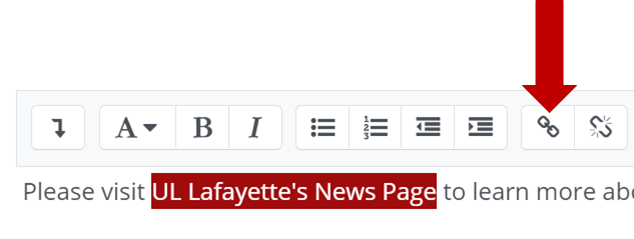
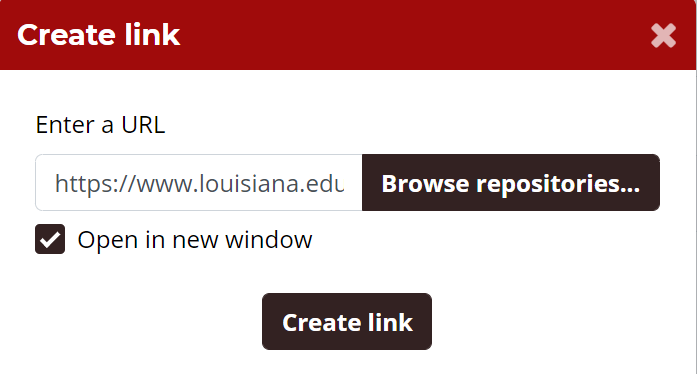
5. In the Enter a URL field, paste in the URL for the external website you'd like the hyperlink to lead.
6. Check the Open in New Window checkbox.
7. Click the Create Link button.
8. When done adding hyperlinks, click the Save and Display button at the bottom of the Edit Settings screen. The new hyperlinks will appear as red text.
