
How to Recognize an Accessible PDF
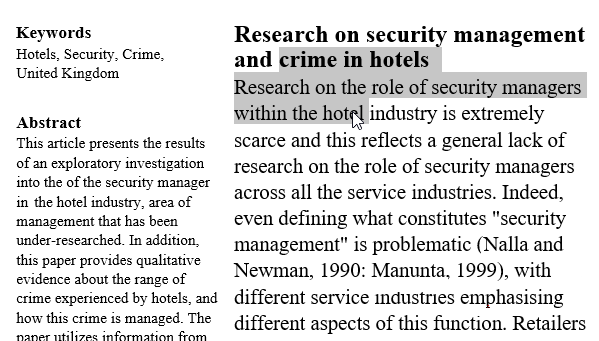
An accessible PDF document is both searchable and selectable.
The simplest way to check a PDF is to try to click and drag to select words. If you can select the text, then the PDF will be readable and searchable by screen-reader technologies.
If you cannot select anything, then the PDF is most likely an image and it not accessible.
How to Generate Accessible PDFs from Word, Excel, or PowerPoint Files
From any Microsoft Office product (Word, Excel, PowerPoint, etc.), use the Save As function.
In the Save as Type list, select PDF as the file type.
Avoid using the "Print as PDF" or "Print to PDF" functions in MS products and web browsers.

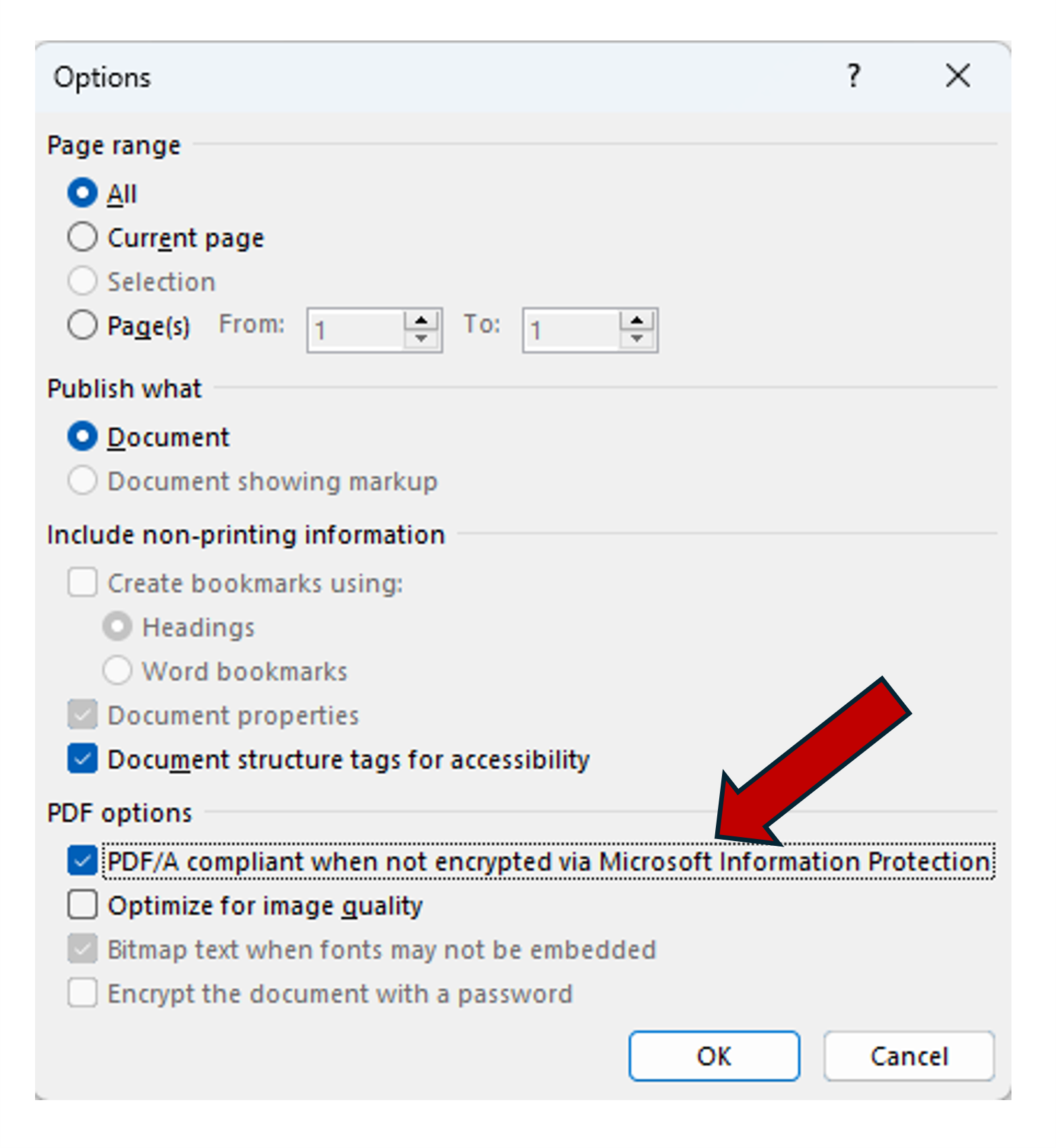
When saving a document as a PDF, make sure to click the Options button on the save screen.
Then, check the PDF/A compliant when not encrypted... checkbox to create the most accessible version of this file.
How to Remediate Existing Inaccessible PDFs
Panorama can identify PDF files that are not accessible in their current form. If your PDF has been flagged for accessibility issues, follow the steps provided to remediate the file.
Option 1
If you have access to a Word version of your document, follow the steps below:
- Open the document in Word, and follow the instructions provided by Panorama and the Microsoft Accessibility Checker to fix the issues.
- Save the document as an accessible PDF (as shown above).
- Reupload the PDF to your Moodle class and allow Panorama to scan it for accessibility.
Option 2
If you don't have access to a Word version of your document and only have access to an existing PDF, you can try the following solutions to remediate the file:
- Use Yuja's Panorama Accessibility Checker within a Moodle course, or Yuja's DocHub, to directly remediate the PDF.
- If the PDF is a scanned image of text, you can use Panorama's Alternate Formats menu to generate and download an OCR Overlay PDF version of the PDF. Then upload this new OCR version of the PDF to the Moodle course and try running the Accessibility Checker again to make direct remediations.
- Find an accessible version of the document online, if possible.
- For copyright-protected publications, articles, reports, etc., contact the original publisher and request an accessible version of the document. An email template is available.
- Find alternative content that is accessible.
Adobe Acrobat Pro
Although not directly supported by the Office of Distance Learning, Adobe's Acrobat Pro software supports full PDF remediation. You can learn more about licensing options for individuals on the Adobe Acrobat website.