
Embedding YouTube Videos in a Moodle Course
Creation Date: Jan 17, 2025
Created By: Distance Learning
1. Navigate to the YouTube video that you would like to embed in your Moodle course.
2. Click on Share below the video

3. Click on Embed

4. Click on Copy

5. Open your Moodle course to the item wherein you would like to embed the video. YouTube videos can be embedded anywhere that the Moodle text editor is present. Some examples are Text and Media Areas; summaries and descriptions for Quizzes, Assignments, and Forums; and others.
6. Click Tools and then select Source code.
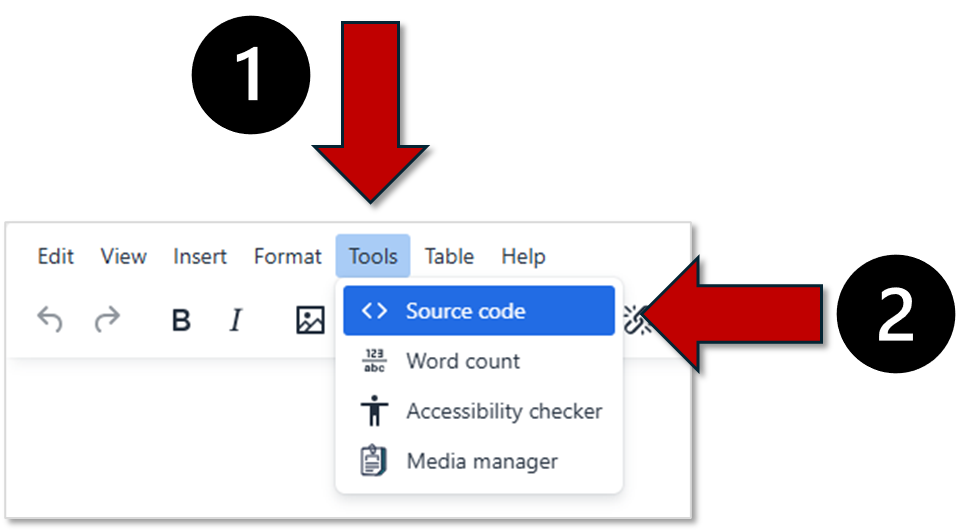
7. Paste copied embed code from YouTube into text area

8. Click on Save and return to course

Created with Tango.ai