
Panorama will flag hyperlinks in any Moodle text editor or document as Major Issues if they meet certain criteria:
- If the hyperlink is an actual URL (such as https://www.louisiana.edu).
- If the hyperlinked text contains key words or phrases including click here, learn more, read more, or more.
Any hyperlinks that have been flagged in this manner will receive the following message in the Accessibility Report.
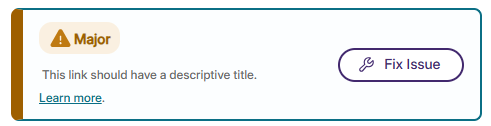
To fix this issue, click Fix Issue in the Accessibility Report menu.
Next, analyze the text used in the hyperlink. There are typically two scenarios explaining why this hyperlink was flagged:
- Scenario #1: The hyperlink is an actual URL or it is not named descriptively.
- Scenario #2: The hyperlink is named descriptively, but it uses one of the key words/phrases (click here, learn more, read more, more).
Below are some instructions on what to do in each of these scenarios.
Scenario #1
The hyperlink is an actual URL or it is not named descriptively.
After clicking Fix Issue in the Accessibility Report, type in replacement text in the field labeled You can provide an alternative description for this image.
Note: the use of the term "image" is in error, but the functionality works correctly.
For example, if a Moodle course has a hyperlink for Chapter 2 Notes on the Roman Empire, and the hyperlink was named only "click here," it could be changed to something such as "Chapter 2 Notes: The Roman Empire" which would describe more about where the link will lead.

Then, click Add Fix and Proceed to Review.

Finally, click Apply Fixes.
Scenario #2
The hyperlink is named descriptively, but it uses one of the key words/phrases (click here, learn more, read more, more).
First, confirm that the hyperlink is actually named in a way that clearly expressed where the link will take the user.
For example, a hyperlink named "Click here to read the notes for Chapter 2: The Roman Empire" would be descriptive, but would still be flagged as a Major Issue due to the use of the words click here.
If the name is not descriptive, see Scenario #1.
If the name is descriptive, after clicking Fix Issue in the Accessibility Report, check the box beside the message Confirm that the link is descriptive.

Then, click Add Fix and Proceed to Review.
Finally, click Apply Fixes.