PowerPoint presentations have specific accessibility concerns that will not be found in other file types.
Issues to address on presentation slides include:
- unique titles for each slide.
- appropriate reading order for the content on each slide.
Slide Titles
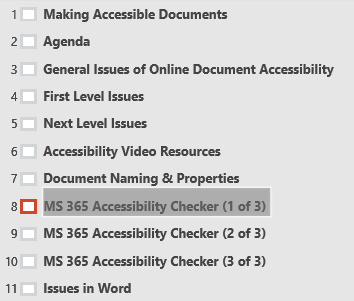
A screen reader uses the names of slides to navigate the presentation. Every slide must have a unique, descriptive title.
If a group of slides is closely related in content, rather than giving them all the same title, use a naming system such as "...1 of 3" so that it will be apparent that the numbered slides are part of a single idea.
Even if a slide title is hidden by a graphic or not visible because it uses the same text color as the slide background, it will still be usable by a screen reader.
Reading Order Within Slides
The reading order is the sequence in which a screen reader will read the text and any image's alternative text information for each slide. It is very important to check the order, because it may not be as expected.
If you are creating a presentation slide using a template, the slide will be read in the order determined by the template (such as title, body text, bullet point, image Alt Text). If you are creating from a blank slide, the reading order will be from first to last in the order elements are added.
This reading order will be changed by moving elements forward or backward in the layer order of the slide. For instance, a block of text in front of an image will be read after the image's Alt Text.
To test the reading order on any slide, click on a blank area of the slide and then push the Tab key on your keyboard. The first element will be selected as if you had clicked on it. Continue clicking your Tab key to progress through the reading order of all slide elements.
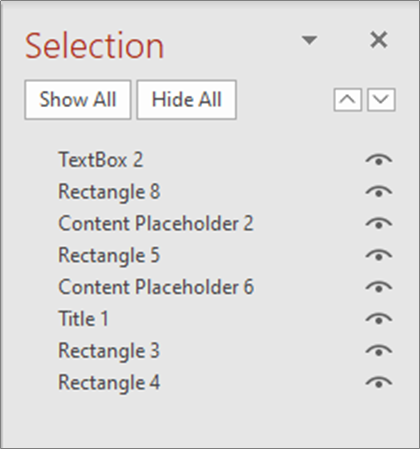
To check the slide order and rearrange the sequence in PowerPoint, use the Selection Panel. Within the Selection Panel, you can view, change, or hide items in the reading order.
To access the Selection Panel with a PowerPoint presentation:
1. Click on the Select menu under the Find icon.
2. Click on the Selection Panel option.
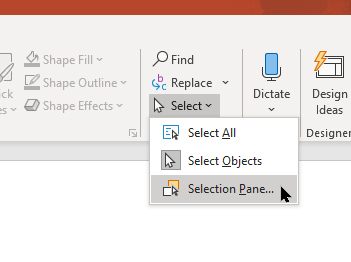
3. The Selection Panel box will appear on the right side of your screen. Note: the reading order proceeds from bottom to top!