
A table can be included in any text-editing box in a Page, Text and Media Area, Forum, etc., from the Edit Settings screen.
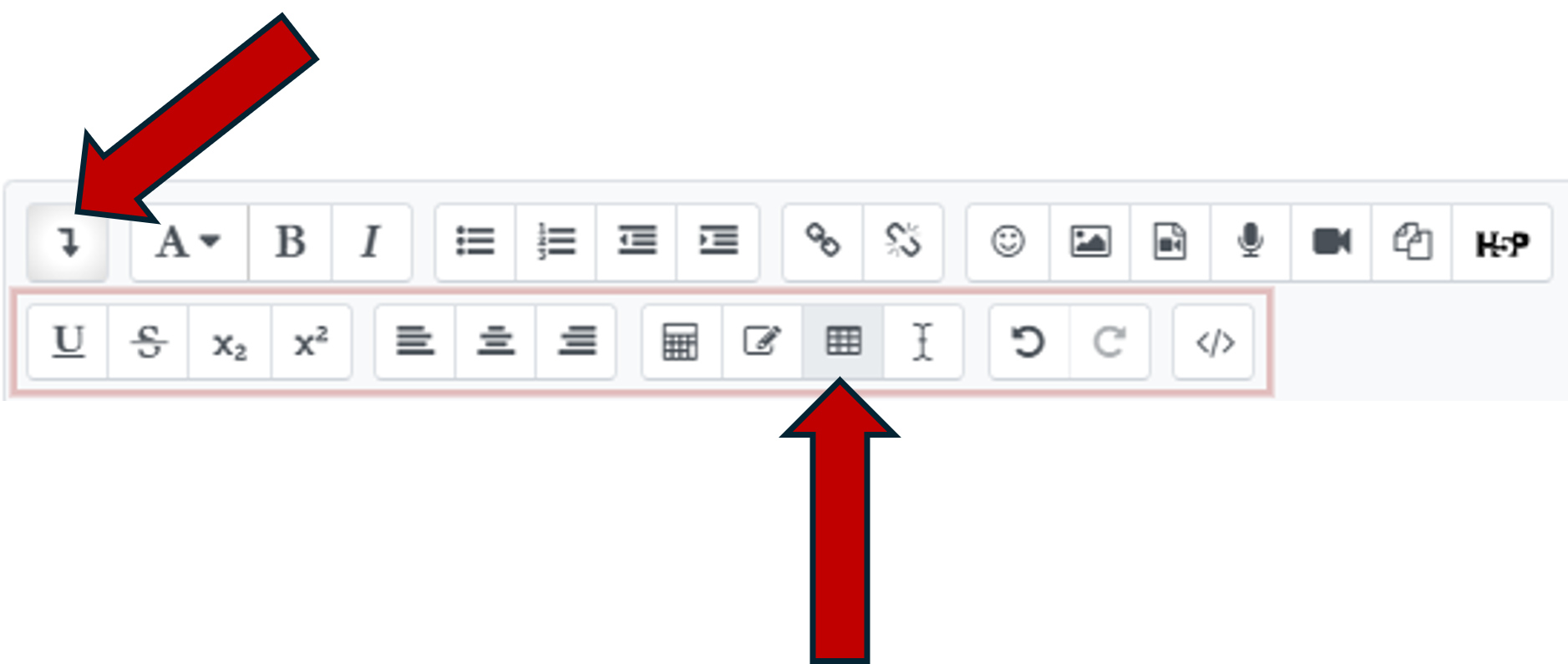
1. When you have decided on the best location for your table, click on the Insert or Edit Table button (it resembles a grid).
2. A Create Table pop-up will appear and allow you to set all of the formatting and accessibility parameters of the table, including:
- Caption
- Caption position (above or below the table)
- Define headers on columns, rows, or both
- Number of rows
- Number of columns
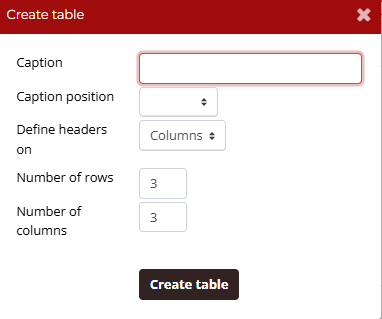
3. Once the correct parameters have been entered, click Create Table.
4. Any table in Moodle can be edited by first clicking on the table content, then secondly clicking the Insert or Edit Table button again.