What are Question Behaviors for Moodle Quizzes?
When setting up a Quiz activity in Moodle, you can choose Question behaviors based on when feedback should be released and how many attempts students are allowed.
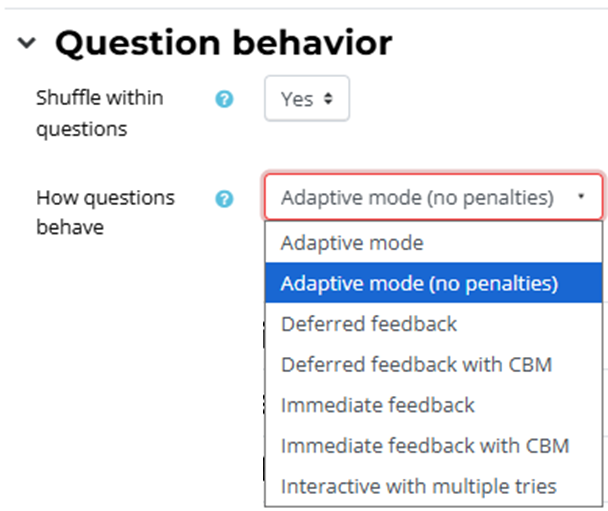
The recommended behaviors are: Deferred Feedback, Adaptive Mode / Adaptive Mode (No penalties), and Interactive with Multiple Tries. We will discuss each of these types individually in this article.
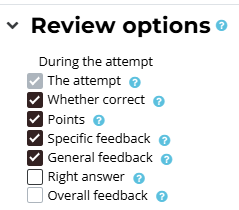
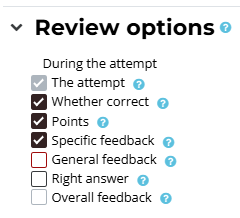
The different question behaviors affect the release of specific information during a student's attempt. Important settings related to the behaviors are in the Quiz's Edit Settings screen, under the Review options heading. Particularly, settings in the During the attempt column are involved with the different question behavior types.
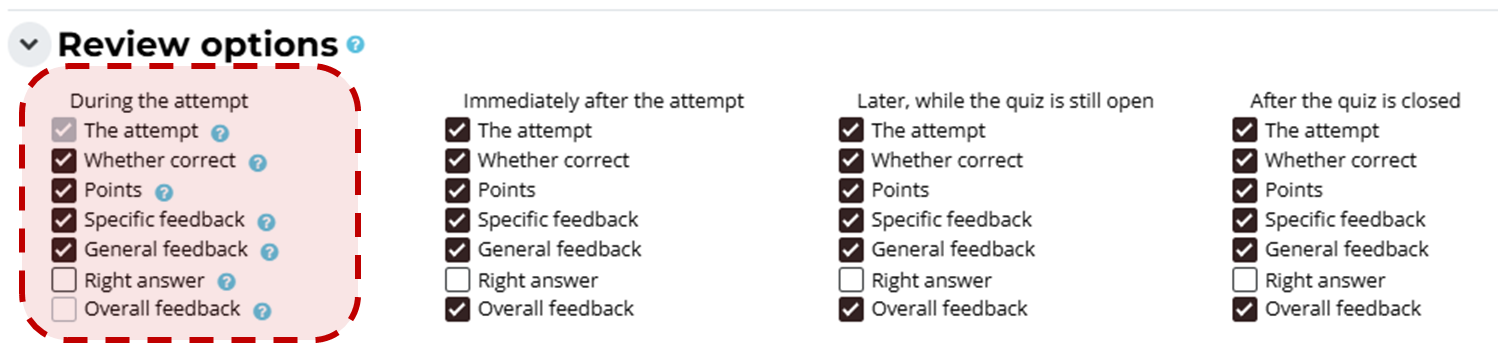
The items in Review Options are:
- The attempt: This controls whether your students can review their own attempts. This is always checked in the During the attempt column.
- Whether correct: This controls whether questions will be identified to students as correct, partially correct, or incorrect.
- Points: This controls whether the numerical points for each question and the overall grade will be shown to students.
- Specific feedback: This controls whether students should receive feedback written for specific answer choices.
- General feedback: This setting determines whether students receive general feedback written for each question, regardless of how they answered that question.
- Right answer: This controls whether the correct answers will be displayed to students.
- Overall feedback: This controls whether your students should receive feedback based on their overall performance after attempts have been completed.
Now, let's examine each recommended question behavior type.
Deferred Feedback
This is the default quiz question behavior type. Deferred feedback requires that your students answer each question and submit the entire quiz before the grade or feedback is released to them.
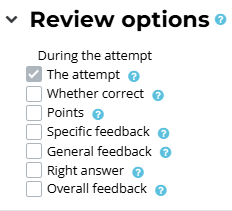
In the Review Options, the column labeled "During the attempt" is grayed out, and no items can be selected.
Adaptive Mode / Adaptive Mode (no penalties)
The Adaptive mode and the Adaptive mode (no penalties) settings allow students to have multiple attempts at each question before moving on to the next question.
Students can click a Check button after answering each question to determine if it is correct or incorrect before submitting the entire quiz attempt.

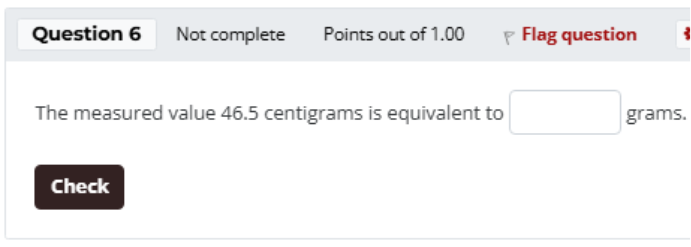
Use Adaptive Mode if you would like a point penalty to be incurred for each incorrect attempt. The settings to adjust the penalty are available in Edit Question under the Multiple Tries heading for each individual quiz question.
The number of Tries is equal to the number of Hints provided in the same location.
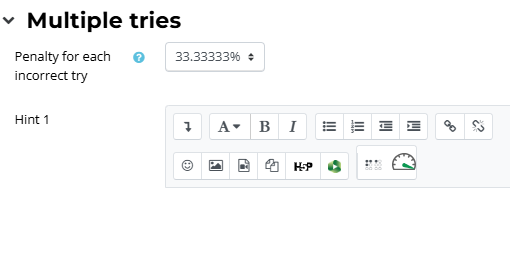
Use Adaptive Mode (no penalties) if you would like students to have unlimited, unpenalized attempts on each quiz question.
The Review Options for the quiz must be changed in the During the attempt column to include "Whether correct" and "Points".
You can also select "Specific Feedback" to display the Specific Feedback written into the different answer choices after the Check button is clicked.
General Feedback will not display after the Check button is used by a student; this feedback will only appear after the quiz attempt is submitted.
Interactive With Multiple Tries
The Interactive with Multiple Tries setting is very similar to Adaptive Mode. The only difference is that Interactive with Multiple Tries allows both General Feedback and Specific Feedback to be viewed after the Check button is used by a student.
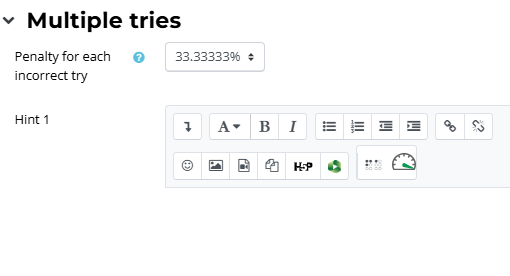
Just like in Adaptive Mode, students can click the Check button, and a penalty is applied if the answer is incorrect. The settings to adjust the penalty are available in Edit Question under the Multiple Tries heading for each individual quiz question.
The number of Tries a student will have for this question is equal to the number of Hints provided in this same location.
Review Options for the quiz must be changed in the During the attempt column to include "Whether correct" and "Points".
You can also select both "Specific Feedback" to display the Specific Feedback written into the different answer choices, as well as "General Feedback" to display general question feedback after the Check button is clicked.