
Formulas, symbols, notations, and equations are notably difficult to make accessible. Screen readers can read math and science formulas if they are created in specific ways.
- Care must be taken to use the correct mathematical symbols (such as the multiplication symbol rather than the letter "x").
- Superscripts and subscripts should be entered using an equation editor, not using font styles.
This article provides information on:
- Equations in Microsoft Word
- Equations in PowerPoint
- Equations in PDF
- Equations in Moodle
- LaTeX Documents
- Equations as Images
Equations in Microsoft Word
Most equations are accessible if written using the Microsoft Equation Editor.
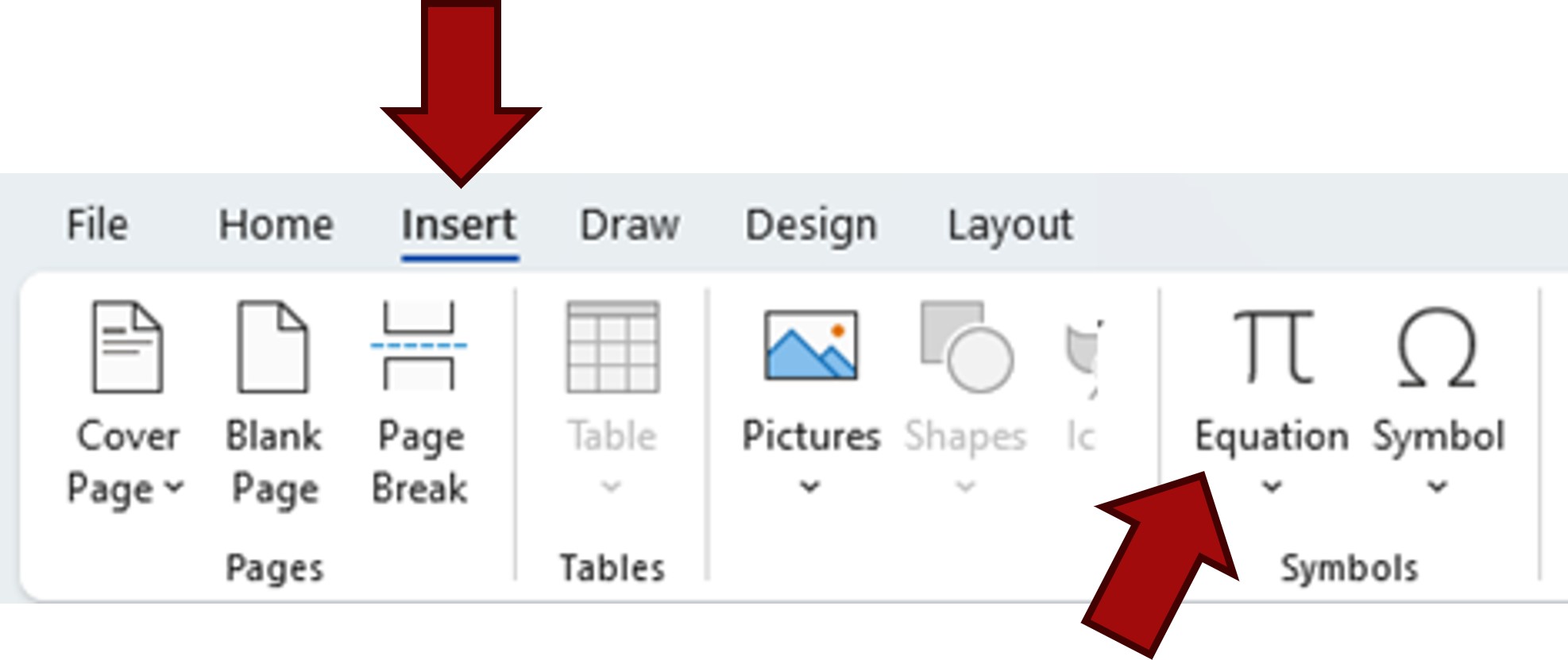
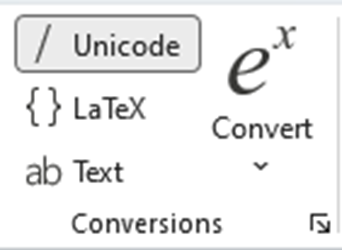
Equations and symbols can then be built directly using the Unicode interface or by using LaTeX.

Equations in PowerPoint
The PowerPoint version of the Microsoft Equation Editor is not accessible. Equations should be entered as:
- An image with descriptive Alt Text to describe the equation
- A MathType object
Equations in PDF
Documents saved as PDF will lose any equation accessibility markup, rendering equations inaccessible (unless they are included as images with descriptive Alt Text).
Therefore, avoid saving files with equations as PDF for accessibility.
Equations in Moodle
Moodle features an equation editor in every text editor that can build accessible equations.
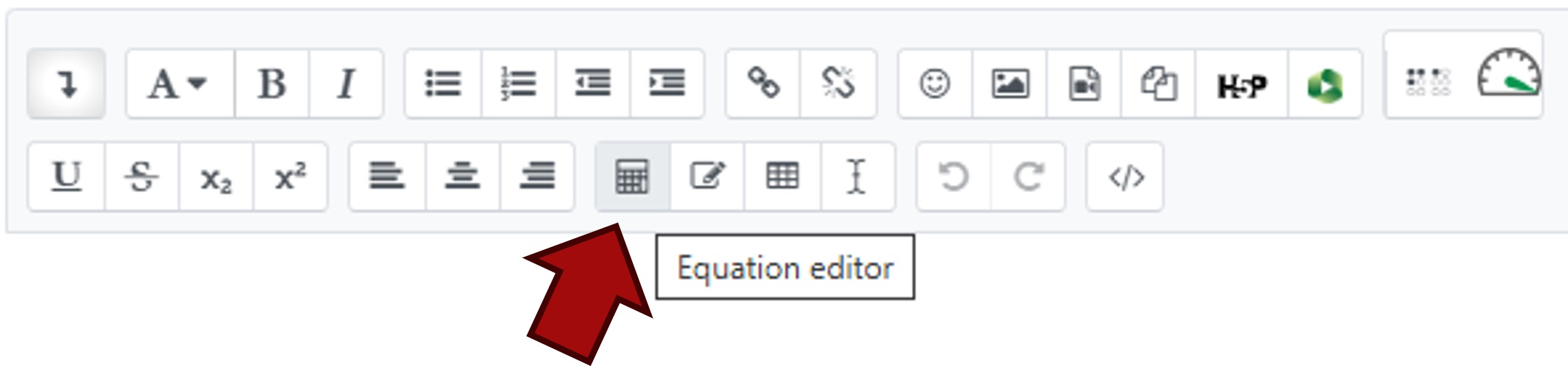
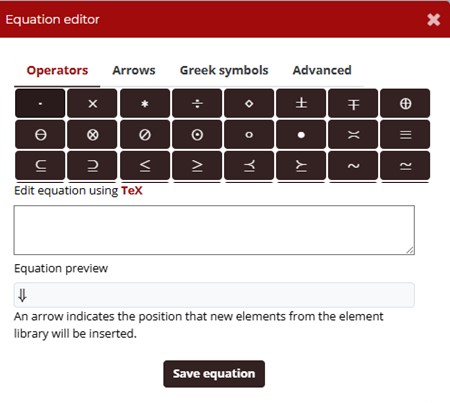
Equations can be entered directly in TeX language or built using the editor tools. Moodle contains a program that converts this language into accessible HTML.
LaTeX Documents
If an entire document is built into a LaTeX editor, accessibility becomes more difficult. Exporting the document as a PDF is not recommended, as accessibility tags for equations will be lost.
Instead, you can explore alternative methods of providing these documents. Below are resources that can help you:
Equations as Images
If all other ways of providing the equation fail, you can include the equation as an image. The Alt Text of the image must be a text translation of all mathematical symbols. This is the most accessible format.
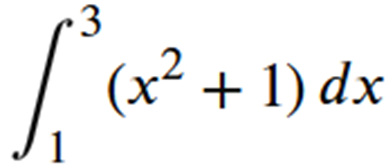
The Alt Text would be: "Integral from 1 to 3 of open parenthesis x squared plus 1 close parenthesis d x"
125 characters is a common limit for standard Alt Text. Longer Alt Text can be provided as a supplemental document or additional slide (if using PowerPoint). Here is an example of how to provide longer Alt Text.
More information on Alt Text is available online.