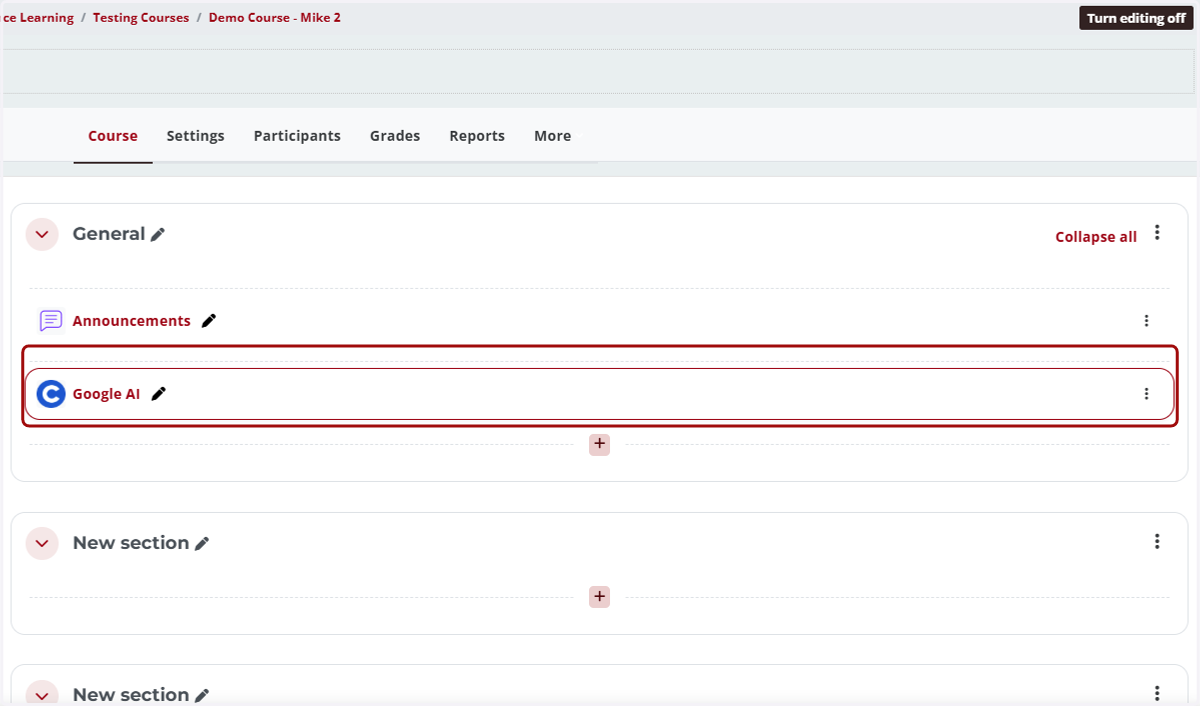
Coursera is one of the world’s largest online learning platforms, offering courses, Specializations, and Professional Certificates developed by more than 375 universities and industry leaders such as Google, IBM, Meta, and Microsoft. Through the University of Louisiana System’s partnership with Coursera, UL Lafayette faculty and students can access this catalog, including Google Career Certificates in fields such as data analytics, IT support, project management, and UX design. These credentials are built around practical, job-ready skills, so students can earn microcredentials that employers recognize alongside their degree coursework.
The Coursera Moodle integration brings this content into your Moodle course. Faculty can add Coursera courses or individual assignments to a Moodle course page. Students open them with single sign-on, so they don’t need a separate login. As students complete their work, their Coursera grades sync automatically to the Moodle Gradebook.
Continue reading below to learn more about the types of learning content available in Coursera and how you can add Coursera content to your Moodle course.
Types of Learning Content Available in Coursera
Coursera’s catalog ranges from multi-course credential programs down to individual videos and assignments. Faculty can assign an entire program or only the parts that fit their course. The following content types are available:
Professional Certificates are job-focused, entry-level programs that prepare learners for specific roles such as IT support, data analytics, or project management. They are created by industry partners such as Google, IBM, and Meta and emphasize hands-on practice and portfolio-ready projects. Learners who complete a Google Career Certificate also gain access to Google’s employer consortium, a network of more than 150 U.S. companies that consider certificate holders for entry-level roles.
Specializations are series of related courses, often developed by universities, that build skills in a particular subject area. Many conclude with a capstone project in which learners apply what they’ve learned.
Courses are standalone units of instruction on a single topic, organized into weekly modules. Students who complete a course earn a certificate for that course, but a single course does not provide the full credential of a Professional Certificate or Specialization.
Learning items are the individual pieces of content within a Coursera course, such as videos, readings, quizzes, labs, and projects. Faculty can assign specific items rather than an entire course, which makes it easy to add a single video or assignment where it fits in their own course. When students complete a graded item, such as a quiz or lab, the score syncs to the Moodle Gradebook.
Adding Coursera Content to Your Moodle Course
1. Access the main page for the course wherein you would like to add Coursera content
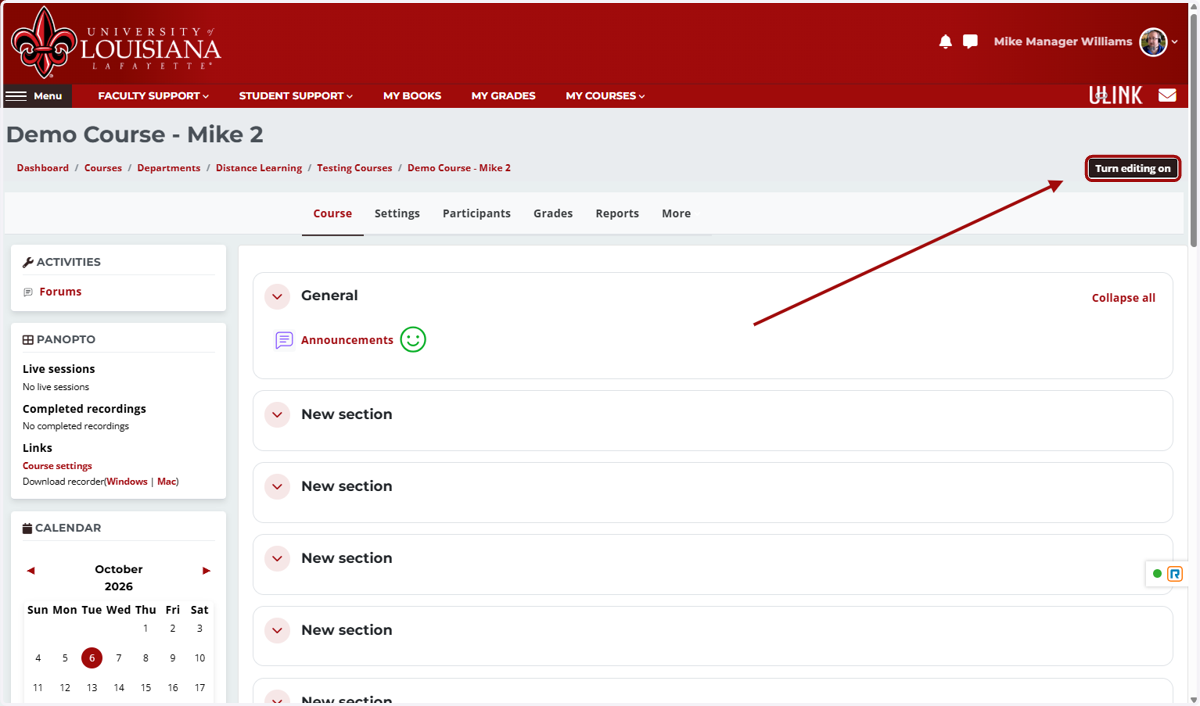
2. Click on Turn editing on
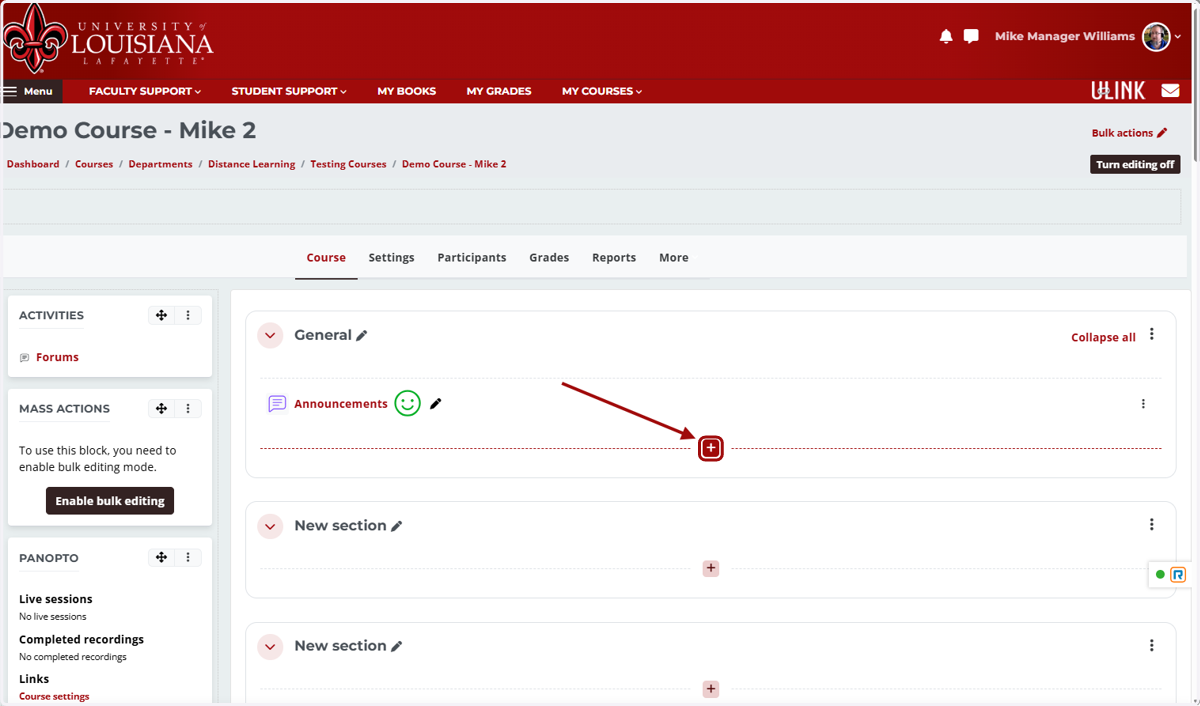
3. Click on the "+" icon
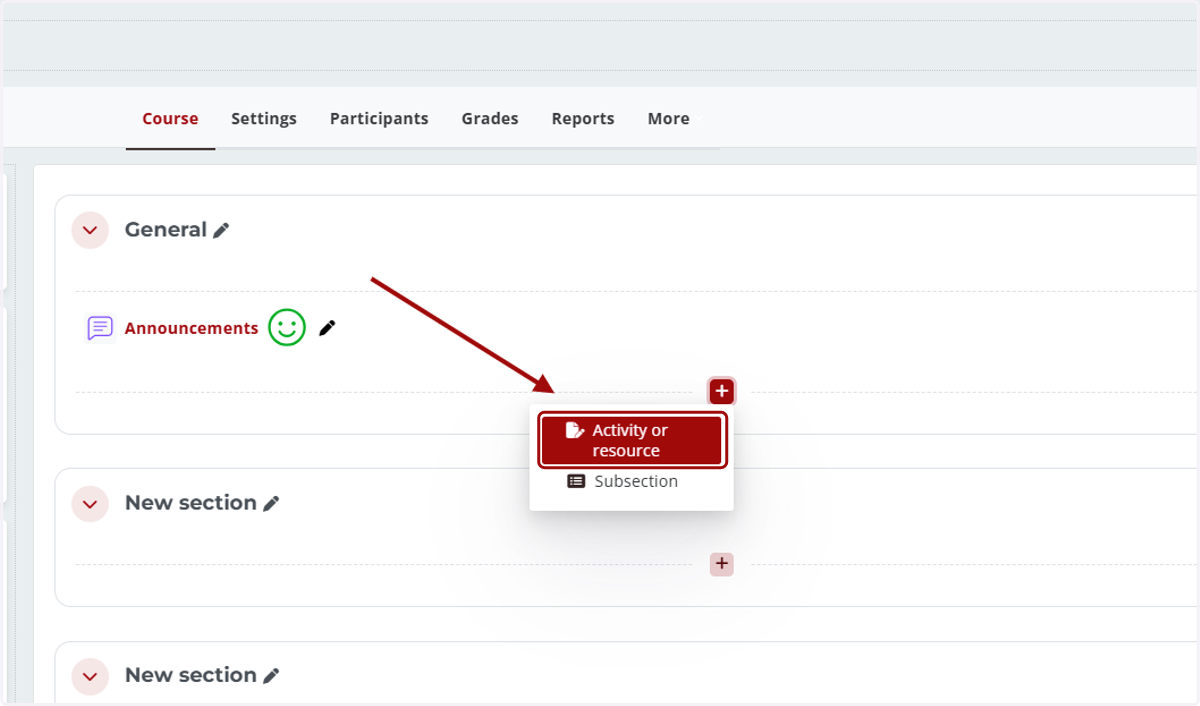
4. Select Activity or resource
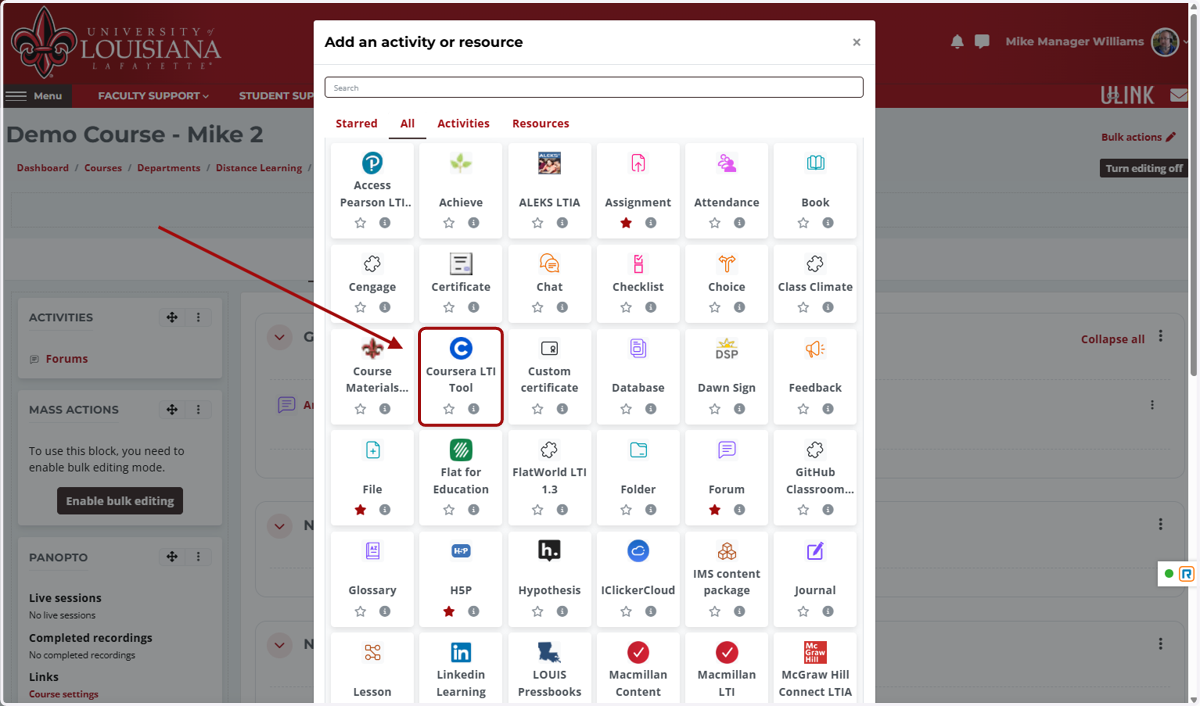
5. Click on Coursera LTI Tool
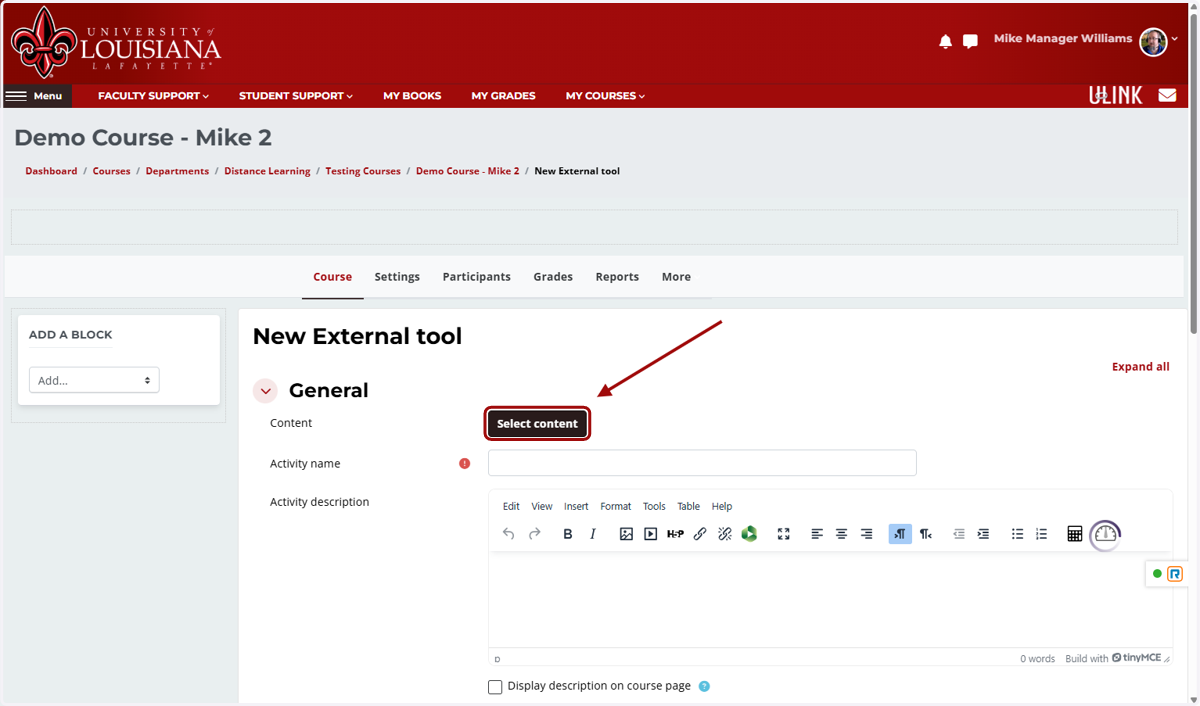
6. Click on Select content
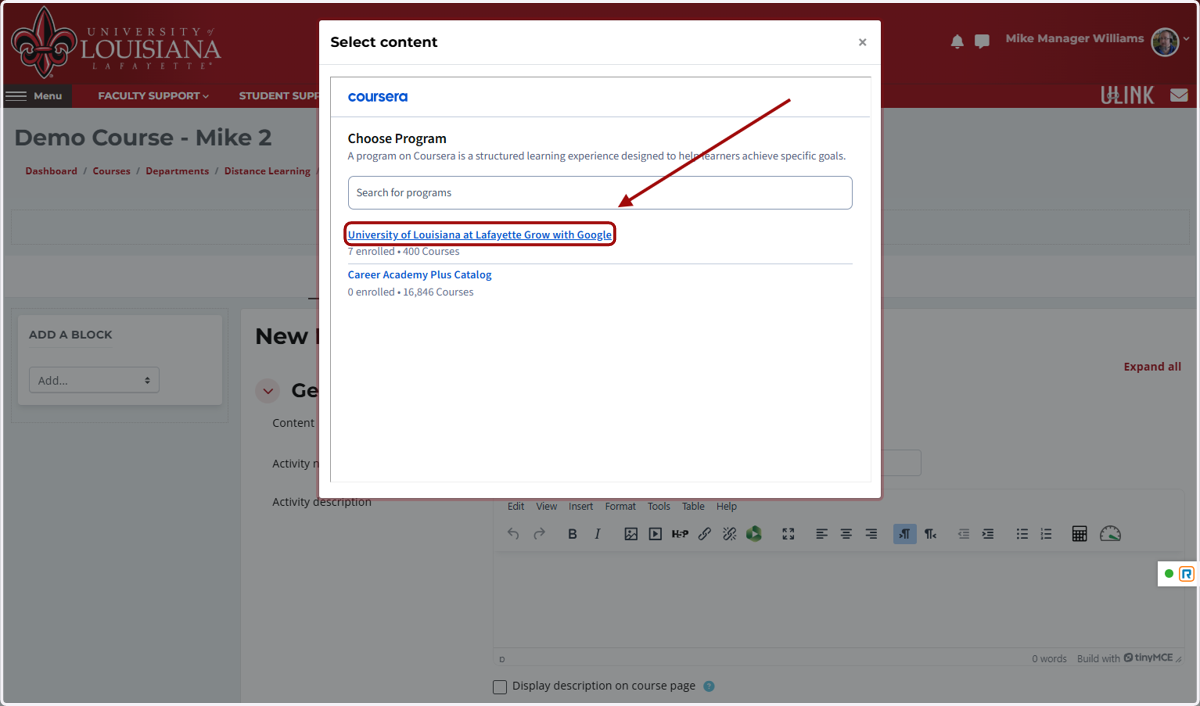
7. Click on University of Louisiana at Lafayette Grow with Google
8. Search for specific subject matter or browse the offerings below
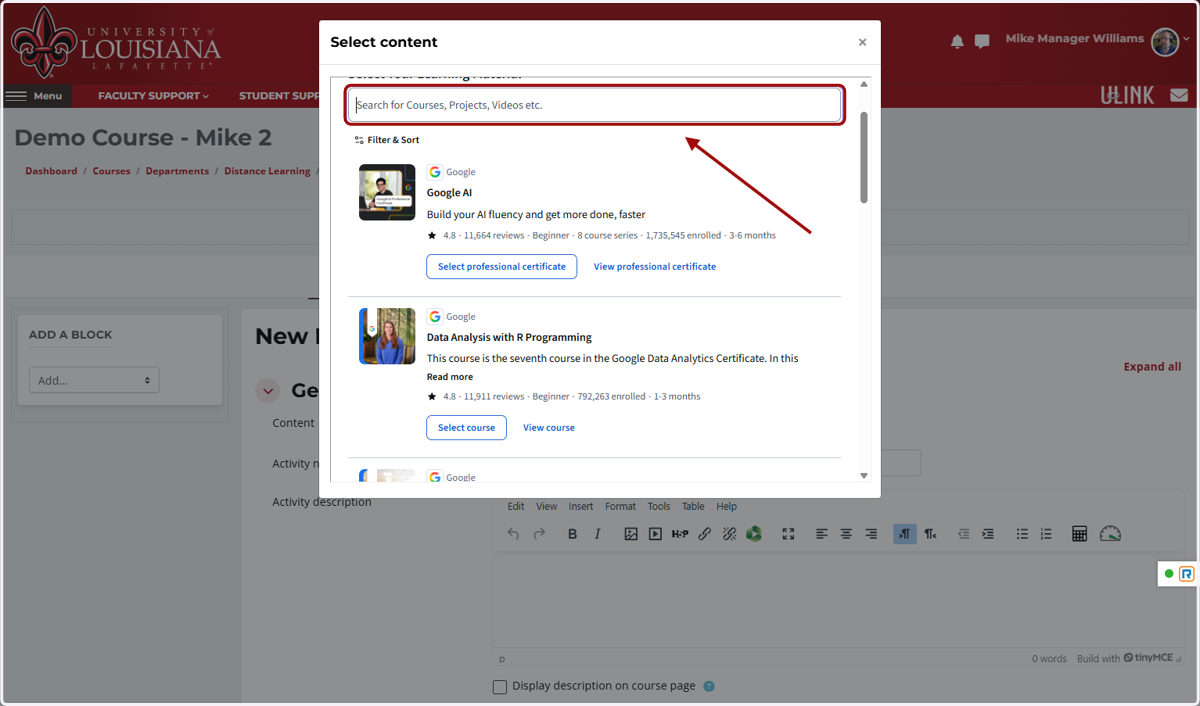
9. Click on View professional certificate to learn more about the courses contained in various learning pathways and certificates
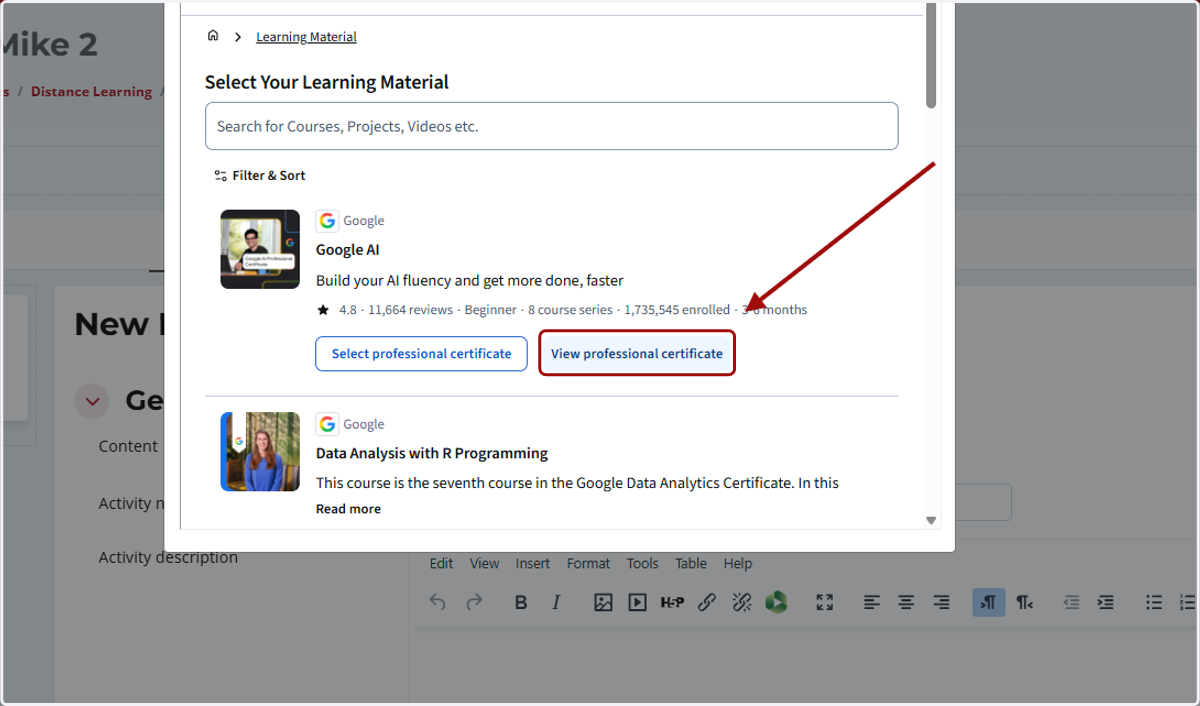
10. Click on Select Professional Certificate to add this content to your Moodle class
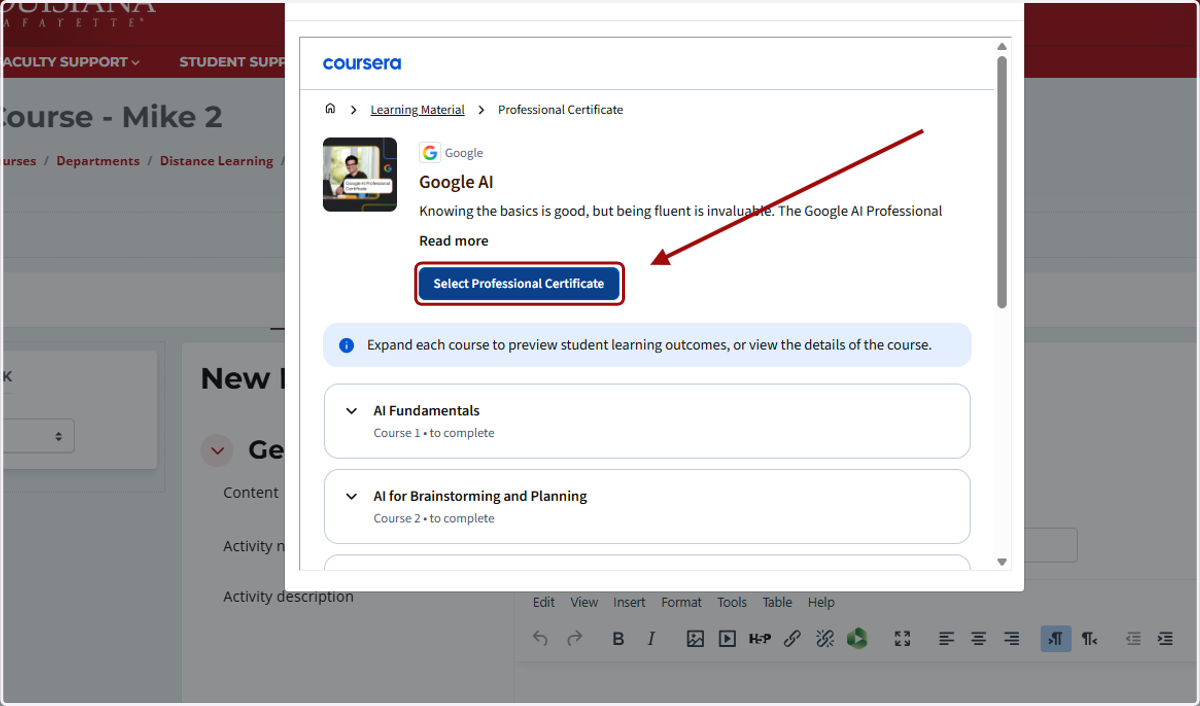
11. If syncing grades to the Moodle Gradebook, set a Stop Grade Sync to Gradebook date
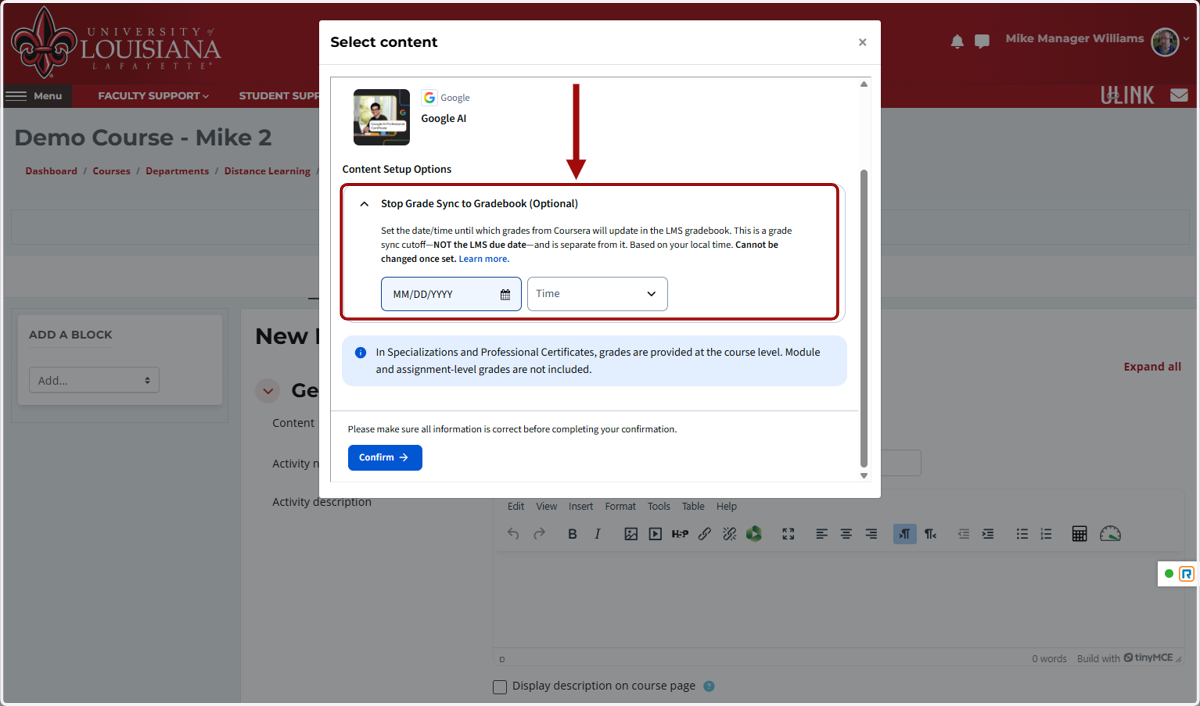
ℹ️ In Specializations and Professional Certificates, grades are provided at the course level. Module and assignment-level grades are not included. If you would like individual graded items synced to the gradebook, please add them individually.
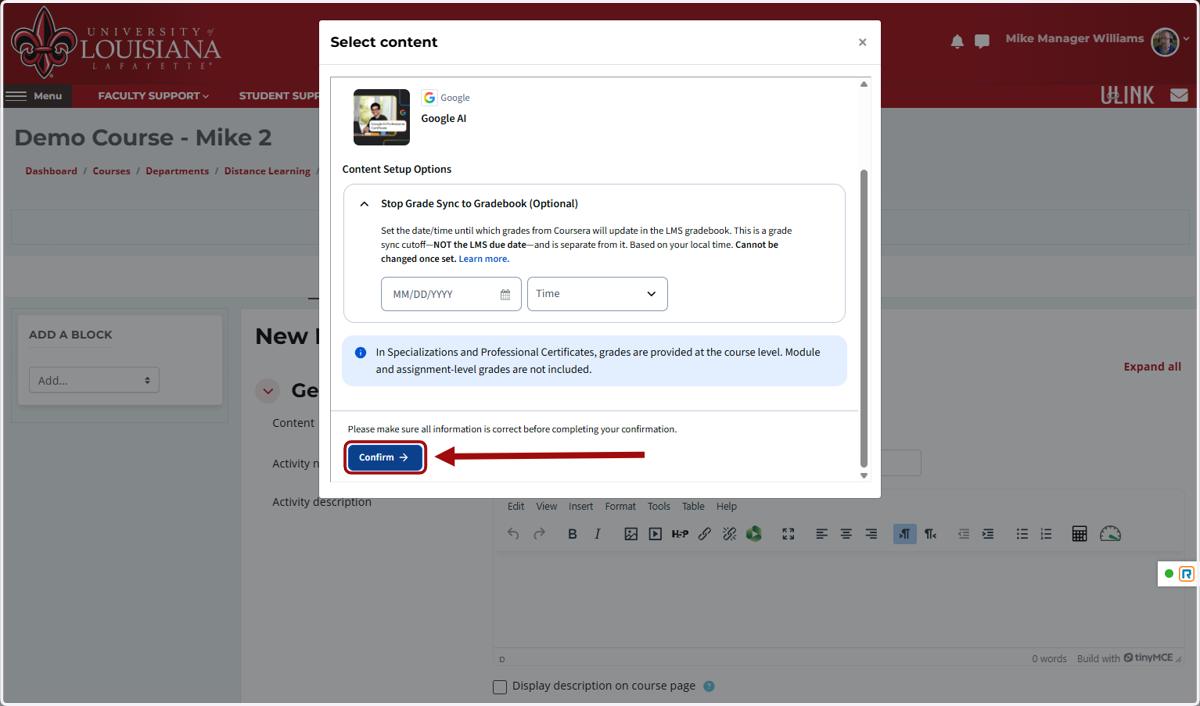
12. Click on Confirm
13. Expand the Grade section
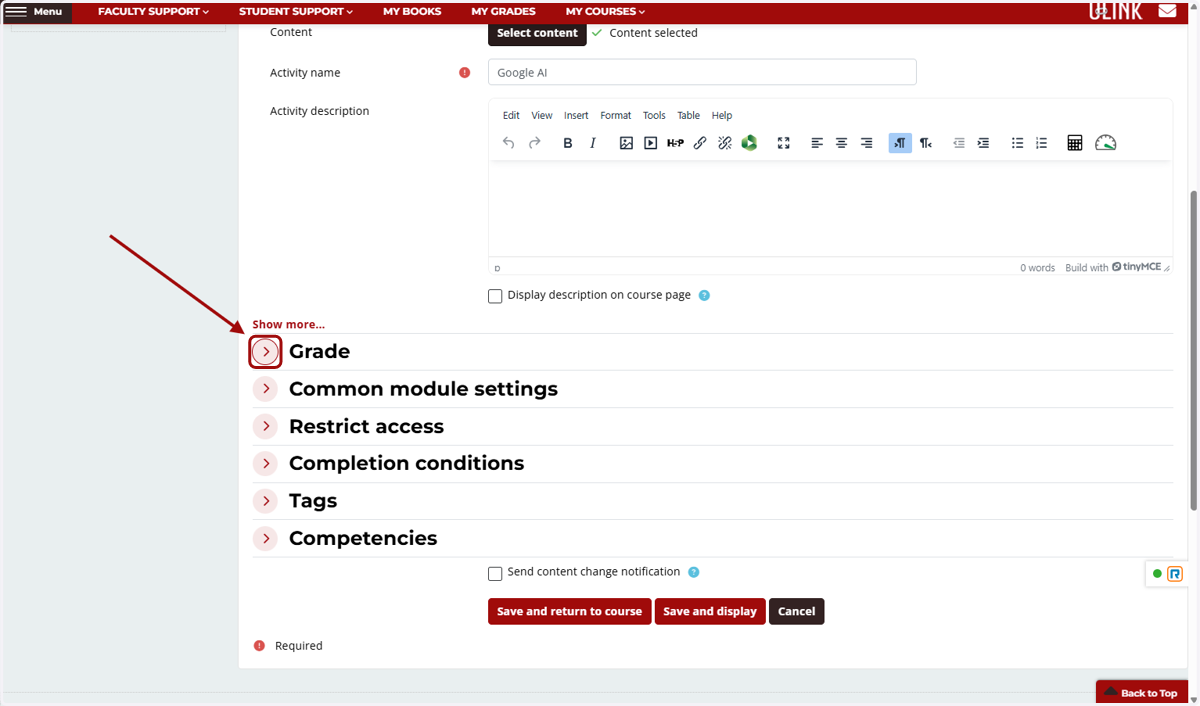
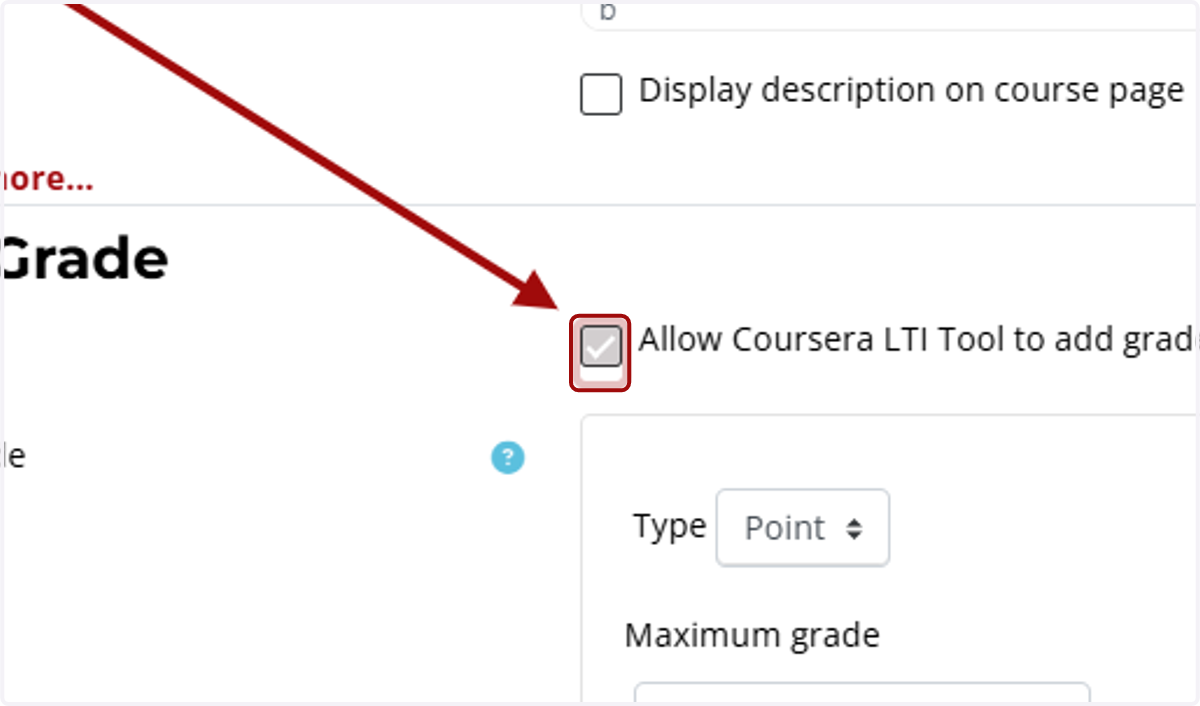
14. Select Allow Coursera LTI Tool to add grades in the gradebook
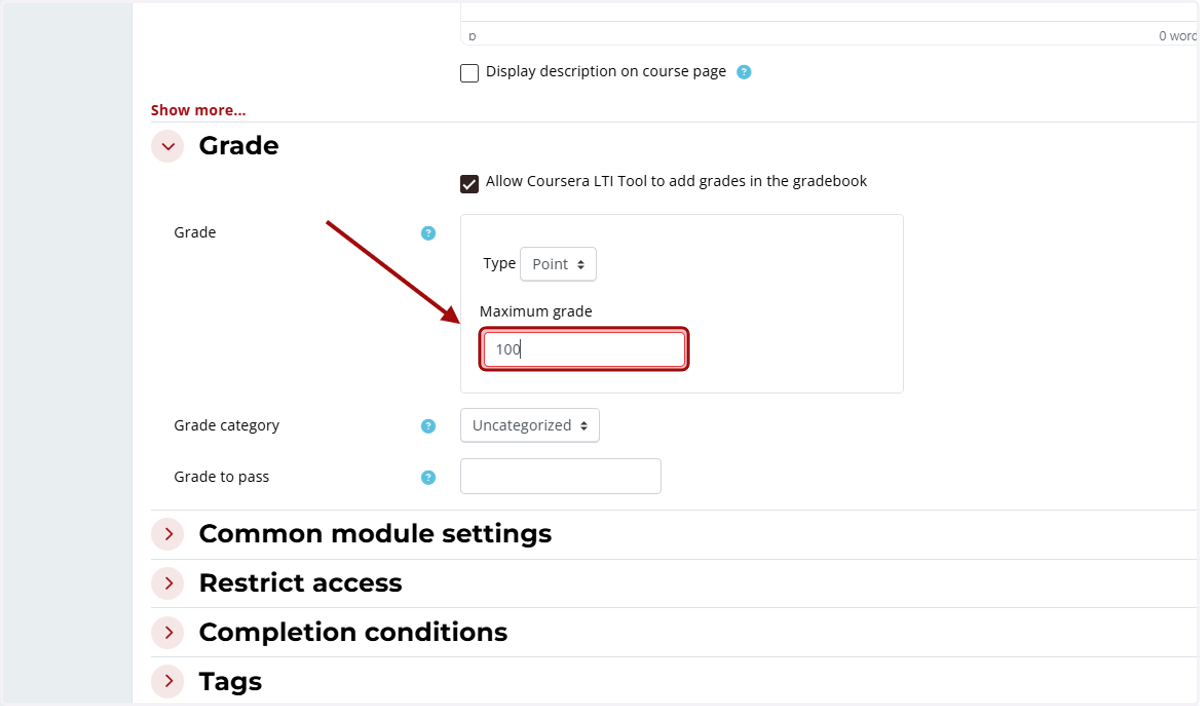
15. Confirm a Maximum grade
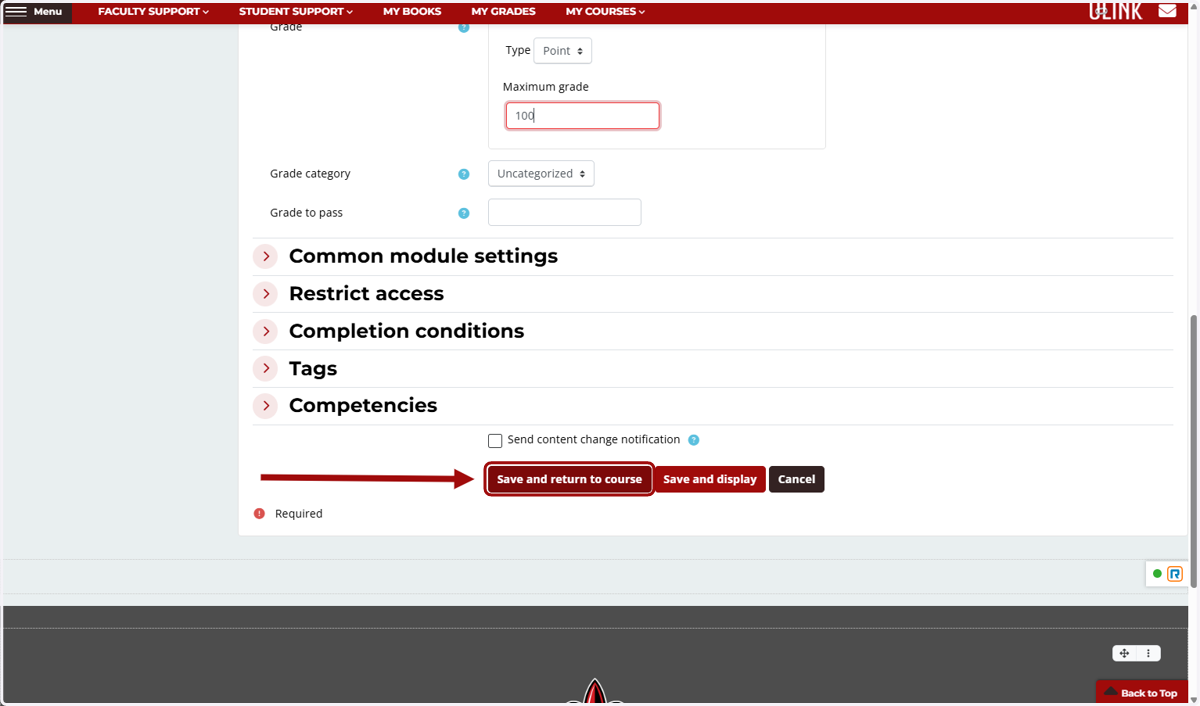
16. Click on Save and return to course
17. Click on Activity or resource…