
Crossword is a customizable crossword tool that allows you to configure colors, upload a background image, decide how scoring should work, and even randomize words so students will get a new crossword each time.
Crossword Examples
Creating a Crossword Activity
1. In the Moodle course, select More from the Contextual menu. Then click on Content bank.

2. Click on the Add button and select Crossword.

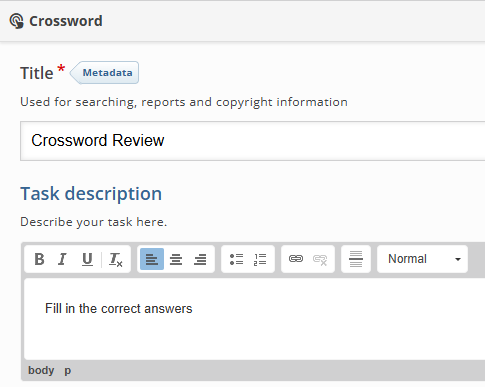
3. Type a Title and Task Description (optional).
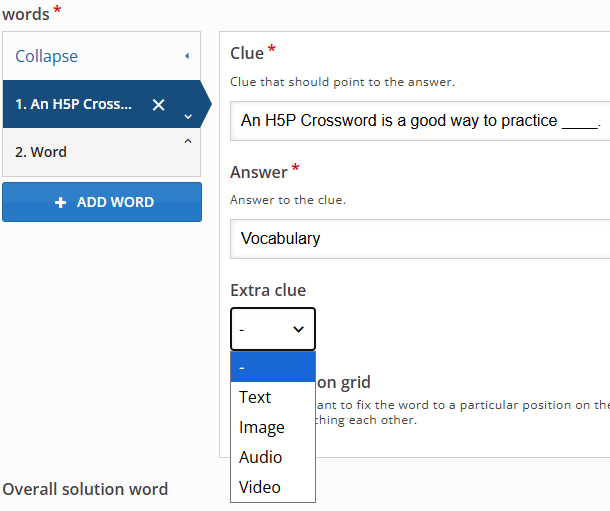
4. Fill in the fields for each Word in your crossword activity. Create a Clue for each Word, and define the Word itself as the Answer. You can provide Extra clues in the form of Text, Image, Audio, or Video.
5. Add Feedback as desired.

6. If desired, use the settings under the Theme heading to change background colors or add a background image, change grid or cell colors, plus many more options.

7. Click the Save button. The Crossword will remain in the Content Bank until it is inserted into a Moodle Course.
Return to H5P Content Tutorials