
Flashcards are a set of cards containing a picture and text on one side of the card, with corresponding text on the other side. The learner is asked to type a word or expression before turning the card over to reveal the correct answer.
Creating Flashcards
1. In the Moodle course, select More from the Contextual menu. Then click on Content bank.

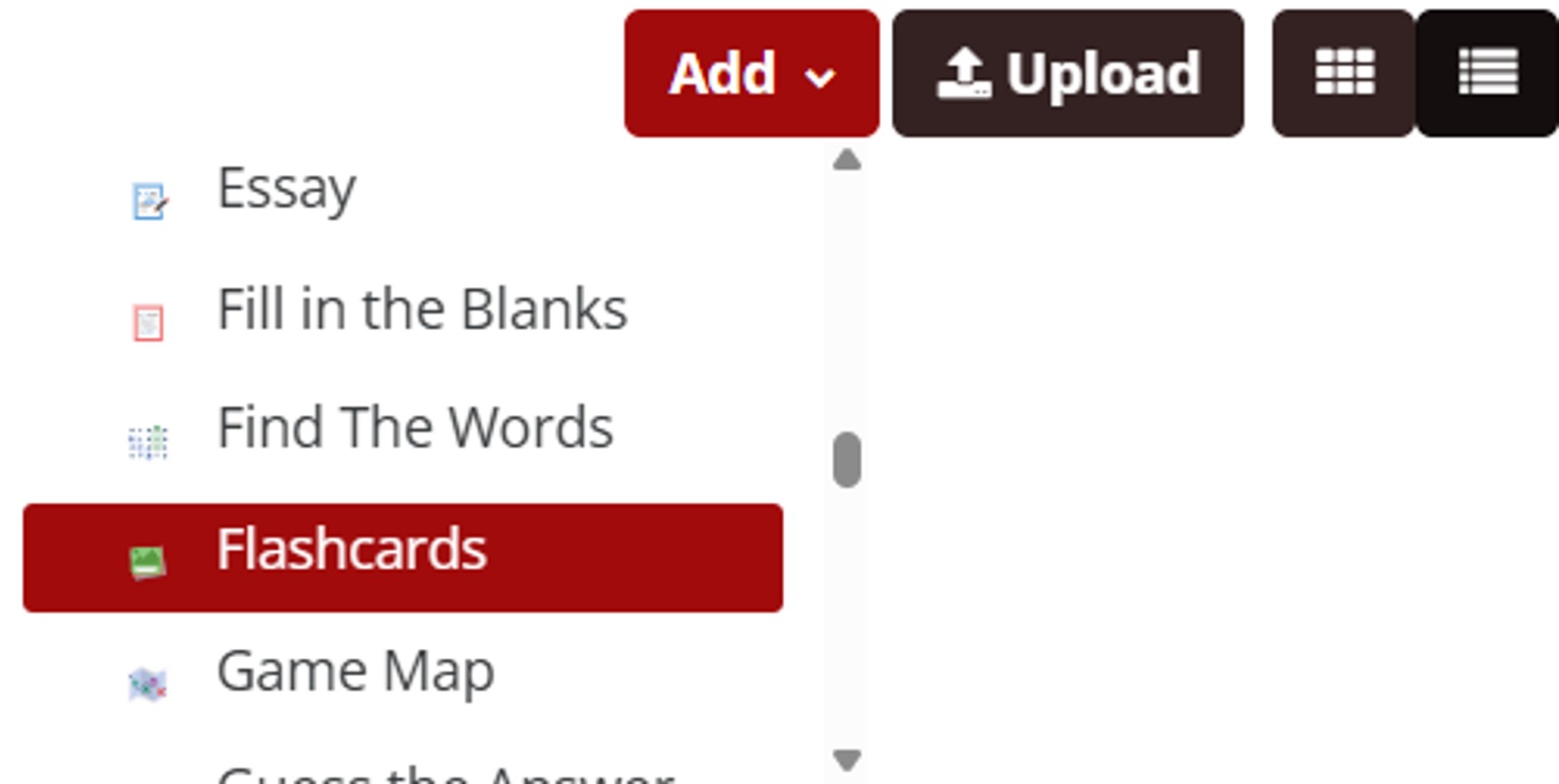
2. Click on the Add button and select Flashcards.
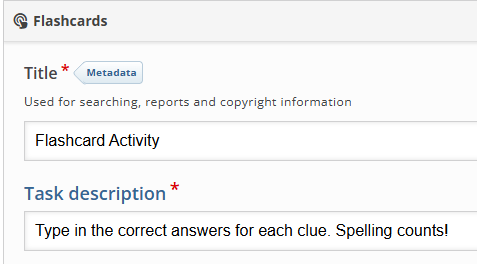
3. Type a Title and Task Description (optional).
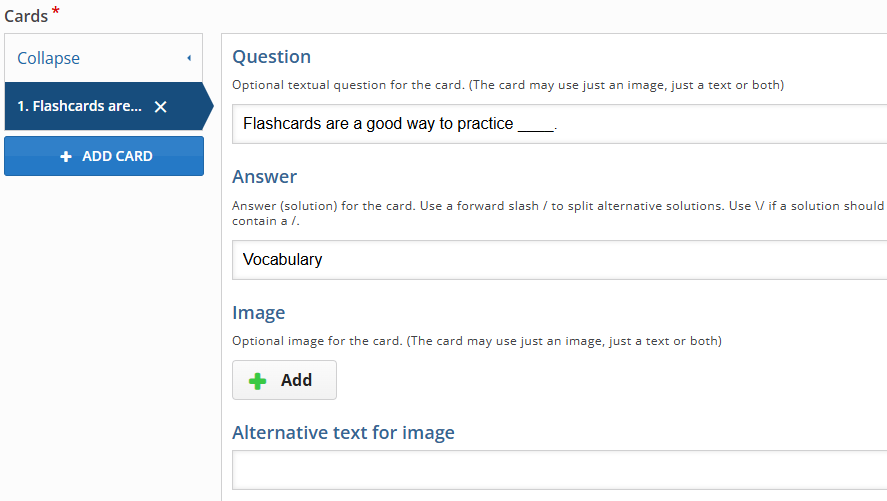
4. Fill in the fields for each Card in your Flashcards activity. Create a Question for each Card, and define the Answer. Under the Image heading, click + Add to add an image to the Card. Remember to include Alternative text for image, if you choose to add one.
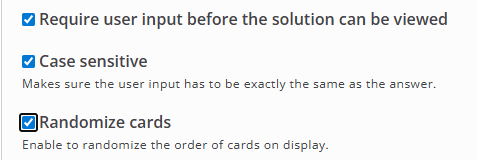
5. Under the Card area, choose to allow/disallow the following settings for the Flashcards activity:
- Require user input before the solutions can be viewed
- Case Sensitive
- Randomize Cards
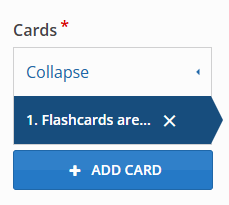
6. Click + Add Card to add more Cards, as needed.
7. Click the Save button. The Flashcards activity will remain in the Content Bank until it is inserted into a Moodle Course.
Return to H5P Content Tutorials