
Visit the H5P website for more information and examples.
What is Interactive Video?
The Interactive video content type allows you to add interactions on top of video clips. Interactions such as images, elaborating text, links, and quizzes pop up while the learner watches the video.
Interactive videos are perfect when you already have a video clip that you want to enrich with interactive elements.
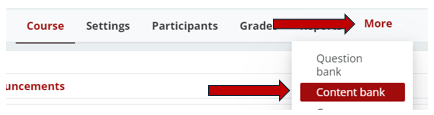
1. Log into your Moodle course, select More from the Contextual menu, and then select Content bank.
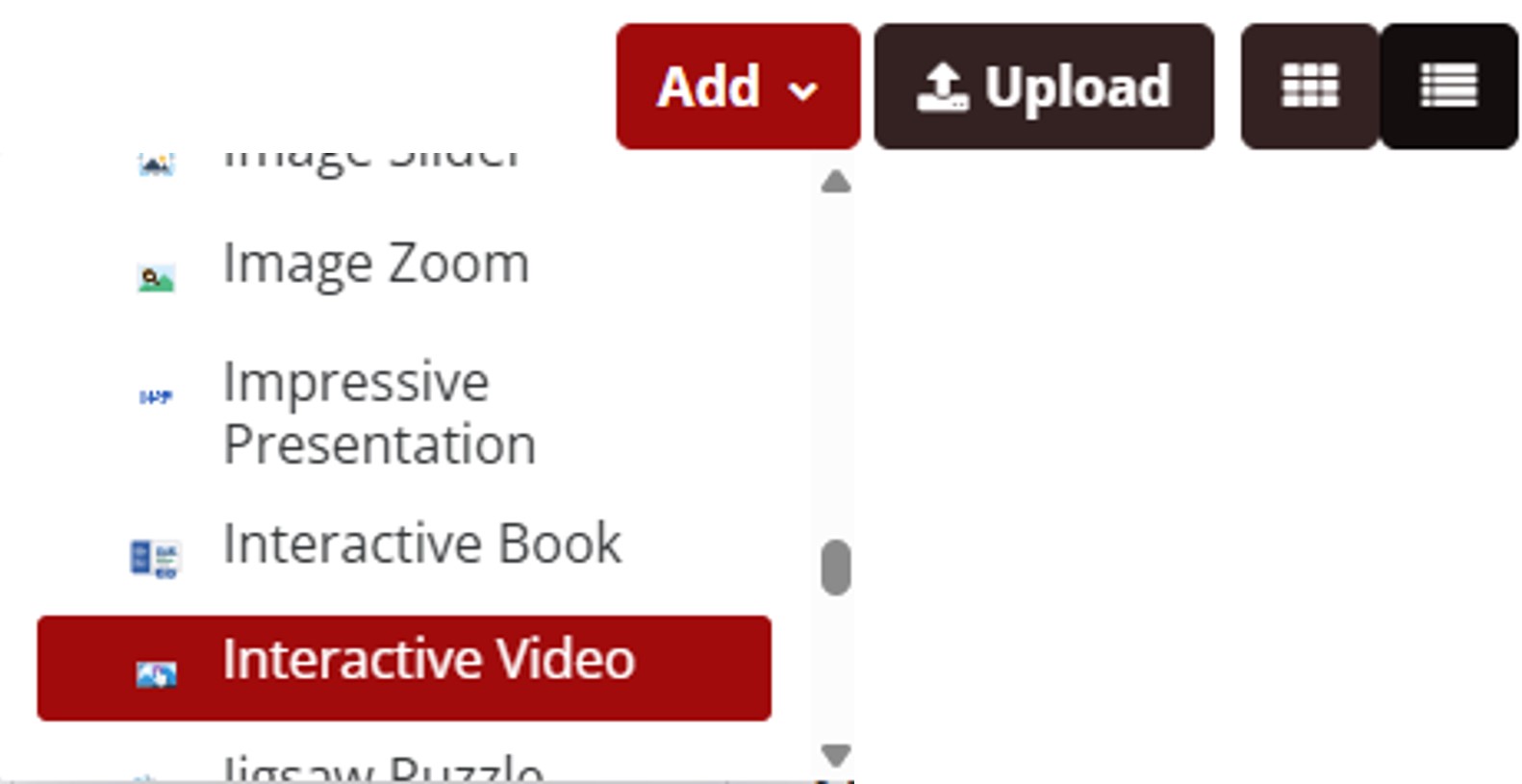
2. Click the Add button, and then select Interactive Video.
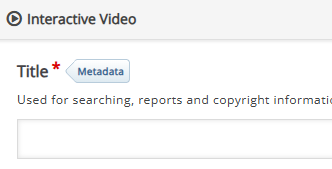
3. Give your video a Title.
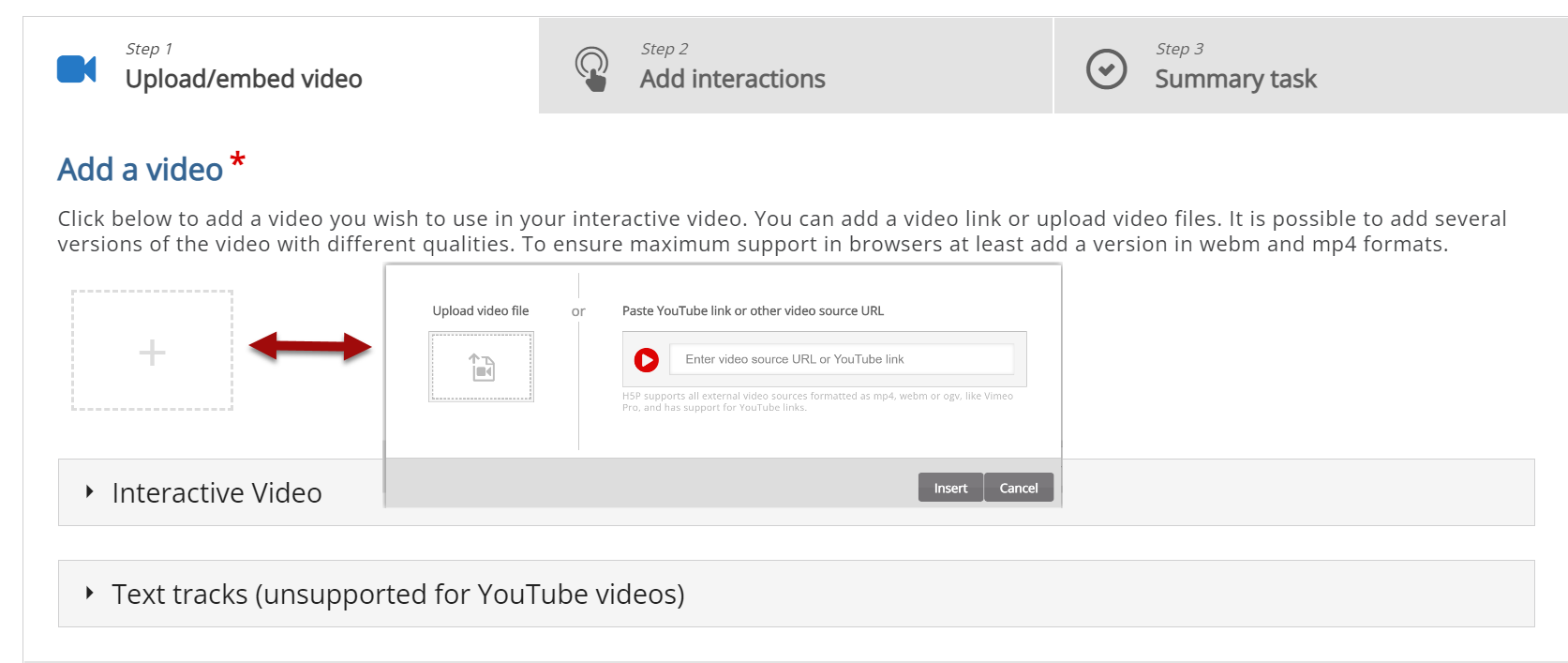
4. Follow the three steps listed in the tabs below the Title field.
A. Step 1: Upload/embed video: Videos can be added three ways:
- Upload the video directly
- Paste a YouTube URL
- Paste a Panopto Share Link (the share should be set to Anyone With the Link)
Once your video is added, the Edit Copyright button will appear, where you can provide copyright information.
Accessibility Requirement: To make Interactive Videos accessible by WCAG 2.1 AA standards, provide a link to the source video (YouTube) or upload the .VTT file (Panopto).
B. Step 2: Add Interactions. There are many interactions which can be used in an H5P interactive video. These interactions are identified with various icons.

Some are used to display information only:
- Label
- Text
- Table
- Link
- Image
The remaining icons provide opportunities for more participant interactions:
- Statements: select the correct statement
- Single Choice Set: select one correct answer
- Multiple Choice: select one or more correct answers
- True/False Question
- Fill in the Blanks: type in a response
- Drag and Drop: drag a selection and drop it into the correct location
- Mark the Words: click on the correct word(s) from a list
- Drag Text (or Drag the Words): drag a missing piece of text into its correct place
- Crossroads: go to specific time codes in a video
- Navigation Hotspot: go to a specific part of a video or an external URL
To add an interaction to your video, drag the play slider along the timeline and stop it at the point in the video where you want the interaction to appear. Then, click the desired interaction button as described in the list above.
When you select an interaction, a context menu will appear. Fill in all appropriate fields, based on the interaction you've selected.
For accessibility, make sure to select the checkbox to Pause video for each interaction.
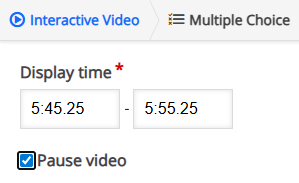
Once an interaction has been added, you can reposition it on the screen by dragging or resizing the item.
Continue this process until all desired interactions have been added.
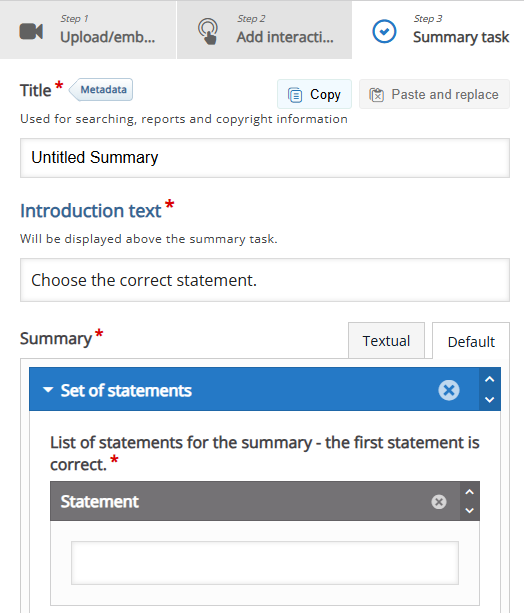
C. Step 3 Summary Task. Add a Summary task to the end of your interactive video to reinforce key concepts. If this is a graded activity, the Summary Task will sync the grade to the Moodle Gradebook. For more information, see H5P and the Gradebook, Activity Settings, and Attempt Options.
5. Click the Save button. The Interactive Video will remain in the Content Bank until it is inserted into a Moodle Course.
Return to H5P Content Tutorials